🚀 Getting Started
This introduction is for people who are opening CraftBot for the first time. Let’s start by getting a broad sense of the features you are likely to use most often.
What is CraftBot?
CraftBot is an AI agent designed to be approachable even for non-technical users. It is built so that expanding it with MCPs or Skills, or connecting it to external apps, does not always require heavy technical setup before you can begin.
Another major feature is Agent App, a way to create work screens you can use together with your agent in natural language. You can describe what you want in everyday words, build a screen that fits your work, and keep improving it over time as your needs change. We will explain Agent App in more detail later in this guide.
Our Vision
More and more companies will build their daily work around AI. Our goal is to provide a place where people can work together with AI without needing to be deeply technical and without spending extra time wrestling with complicated setup. If anyone can easily create AI-native tools for their own work, then a new way of working becomes possible, one that goes beyond simply switching between existing SaaS products.
We want AI to be more than a convenient tool you use once in a while. We want it to become something closer to a working partner that helps you move through daily work together. That is the direction CraftBot is aiming for.
Create your first CraftBot
First, let’s create your own CraftBot. The easiest way to get started is to use CraftBot Live.
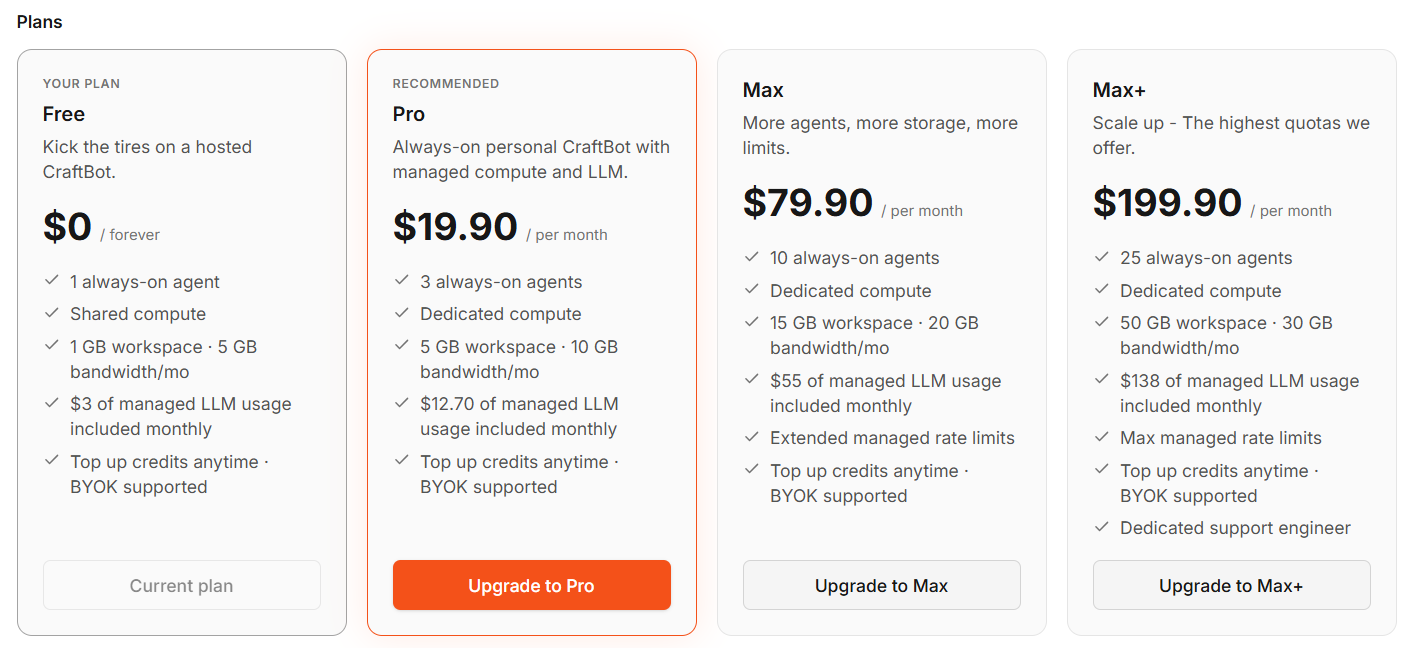
CraftBot Live is a web app for people who want to start using CraftBot right away without going through a complicated setup process. It runs on paid plans (Pro, Max, and Max+), and each plan includes AI credits every month. The Free plan is currently unavailable due to high demand. You can compare the plans on the pricing page.
How to get started with CraftBot Live
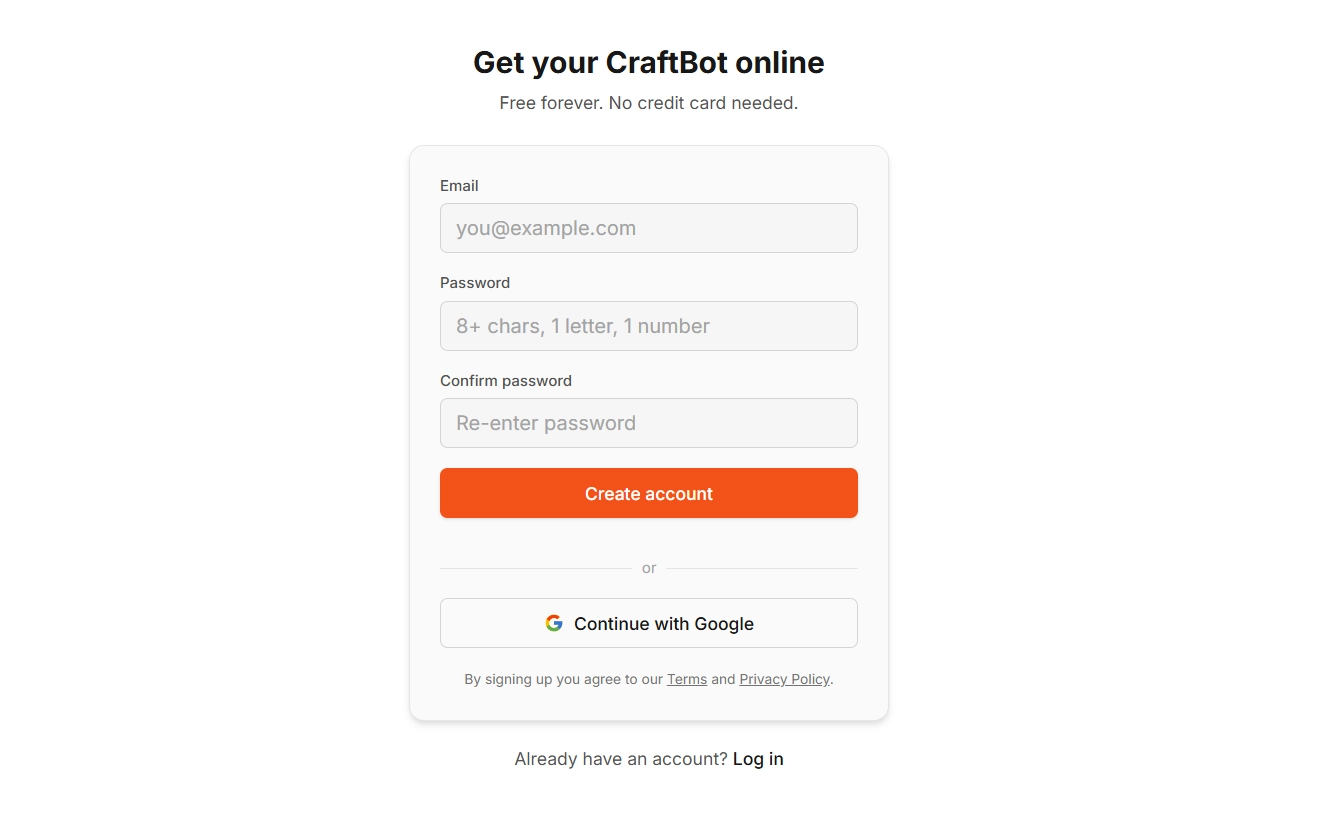
- Open the website and click Get Started.
- Sign in with your email address or your Google account.
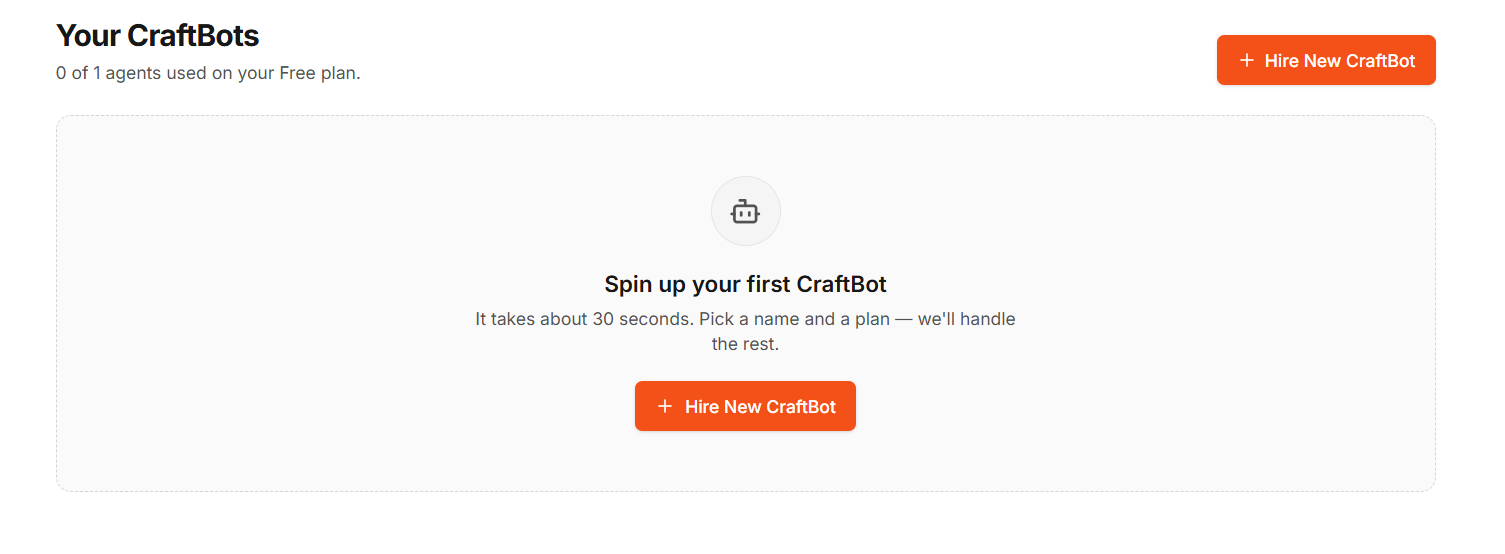
- Choose Hire New CraftBot and create your own CraftBot.
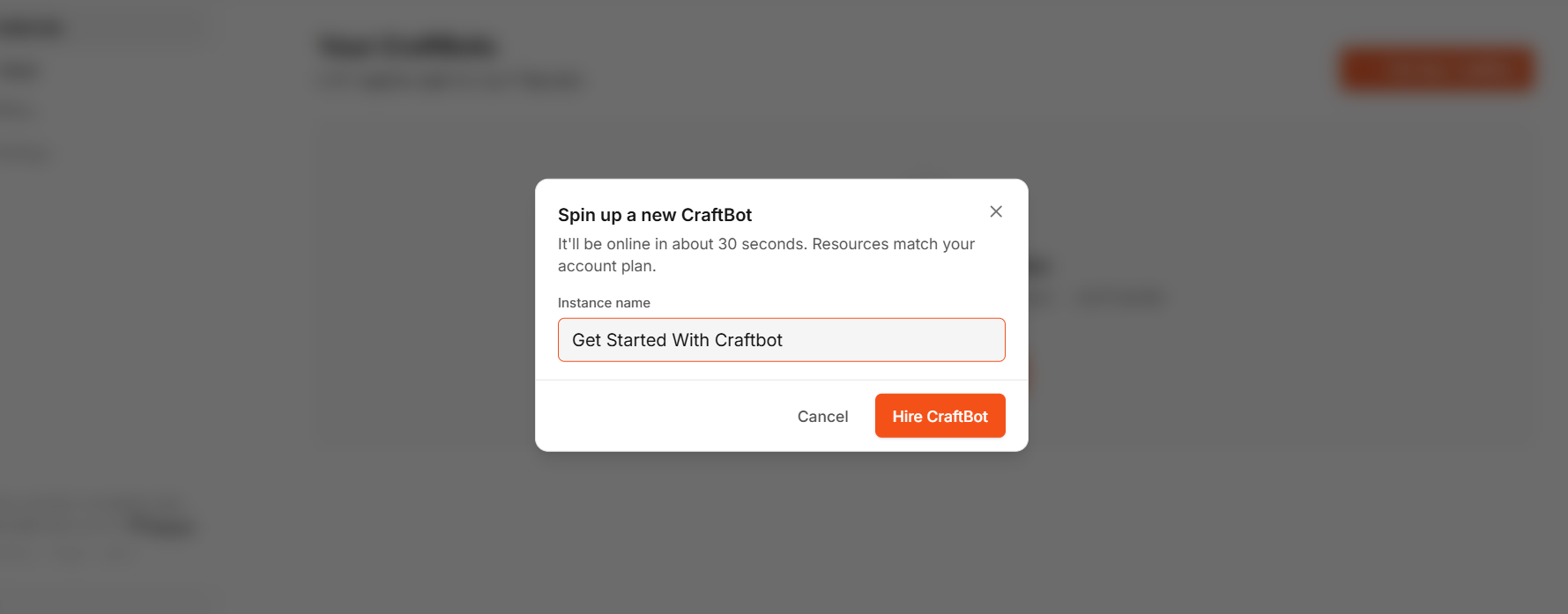
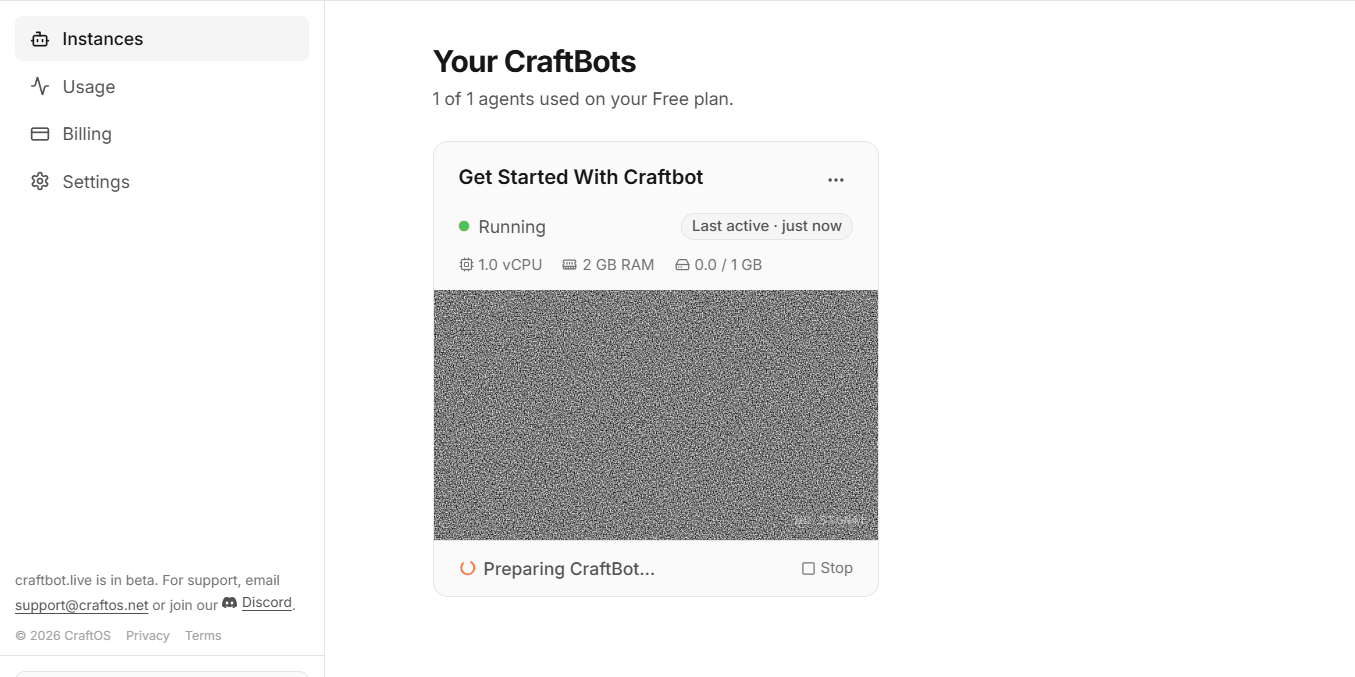
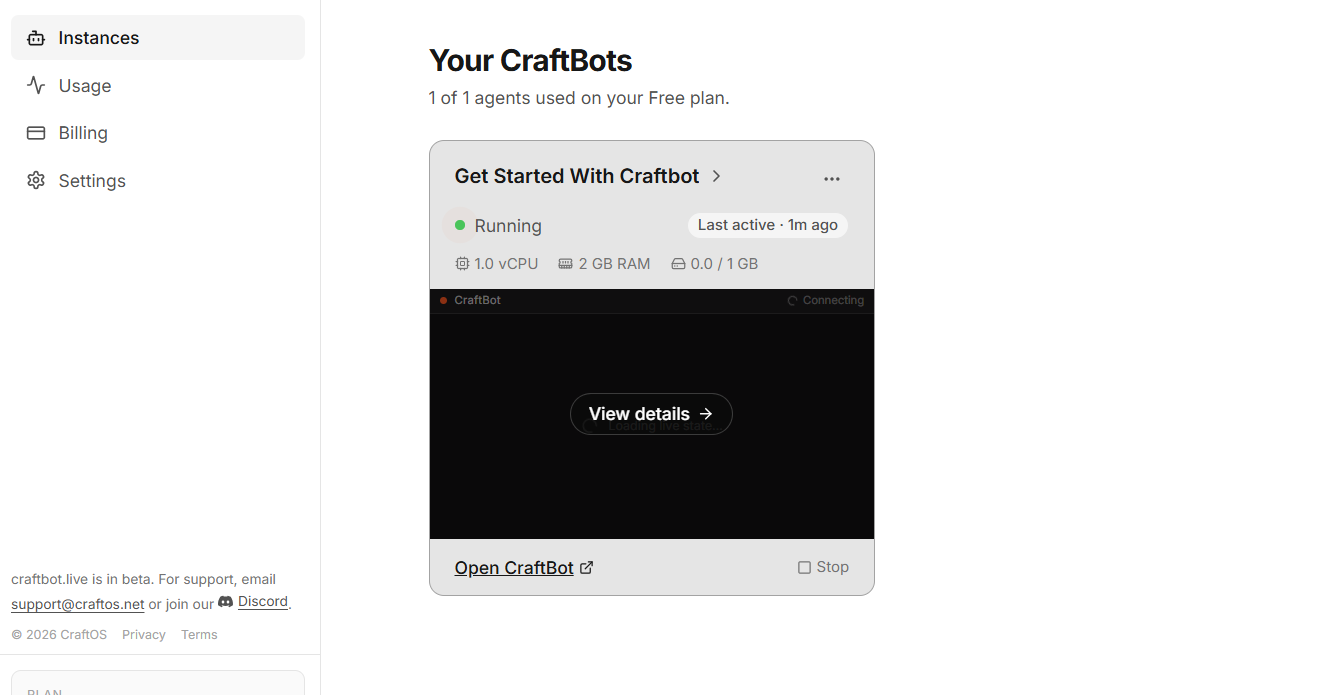
- Complete the profile settings that appear.
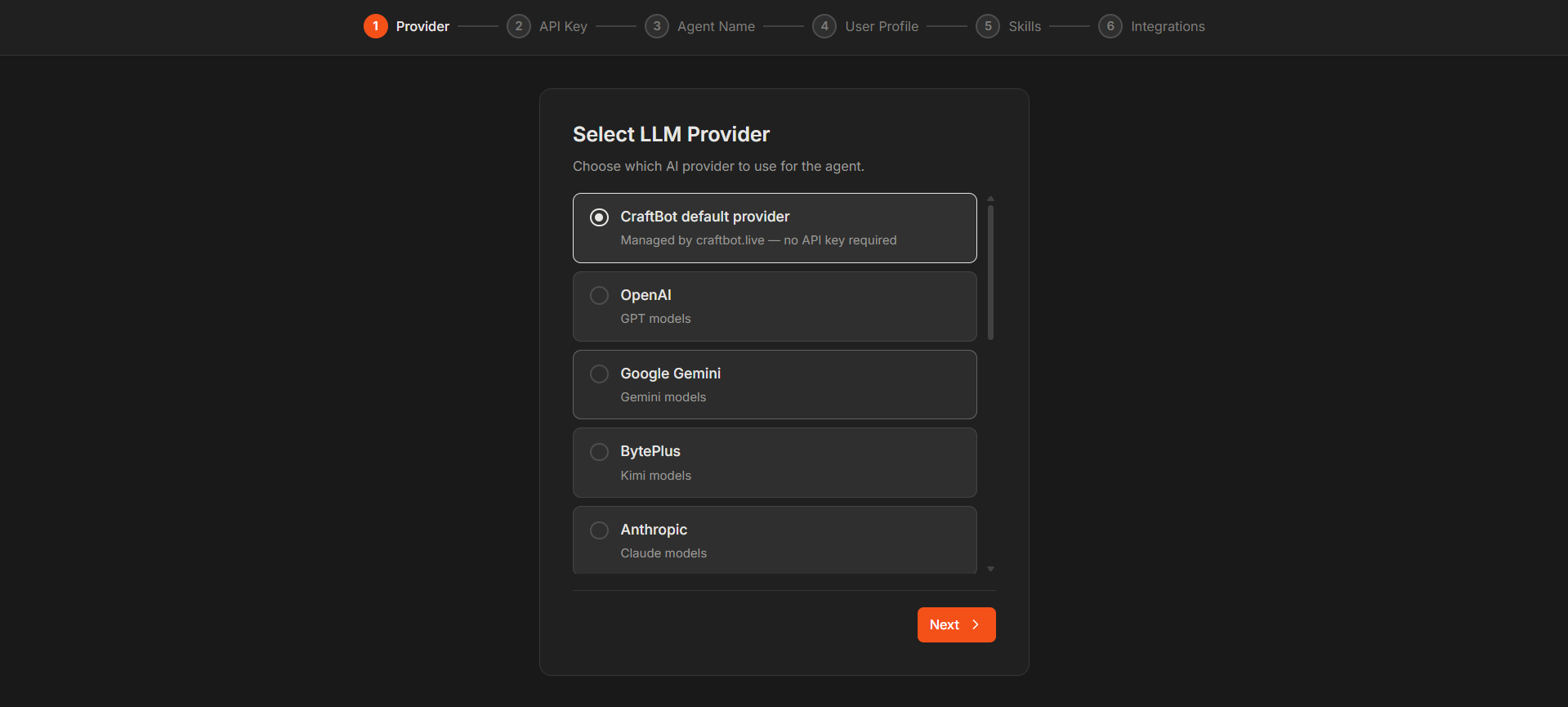
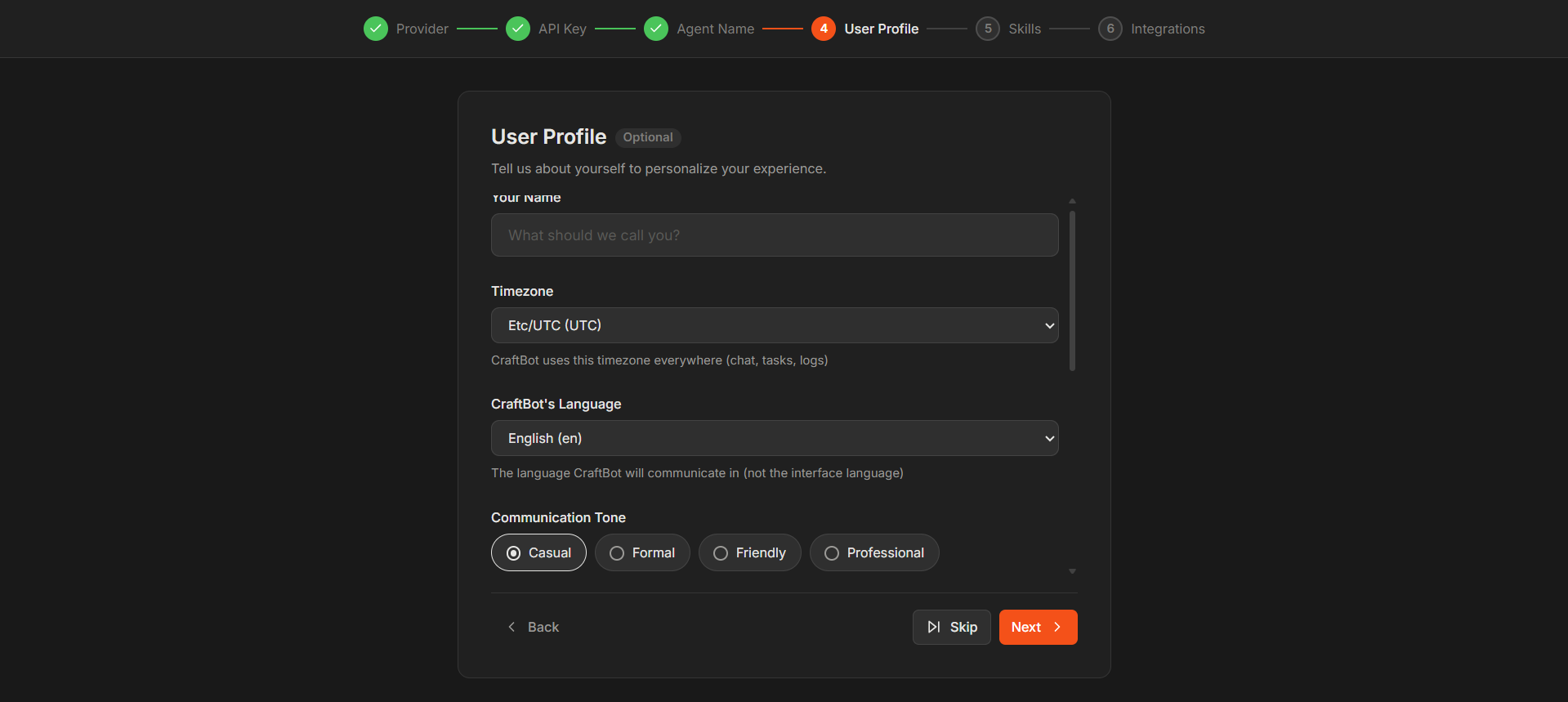
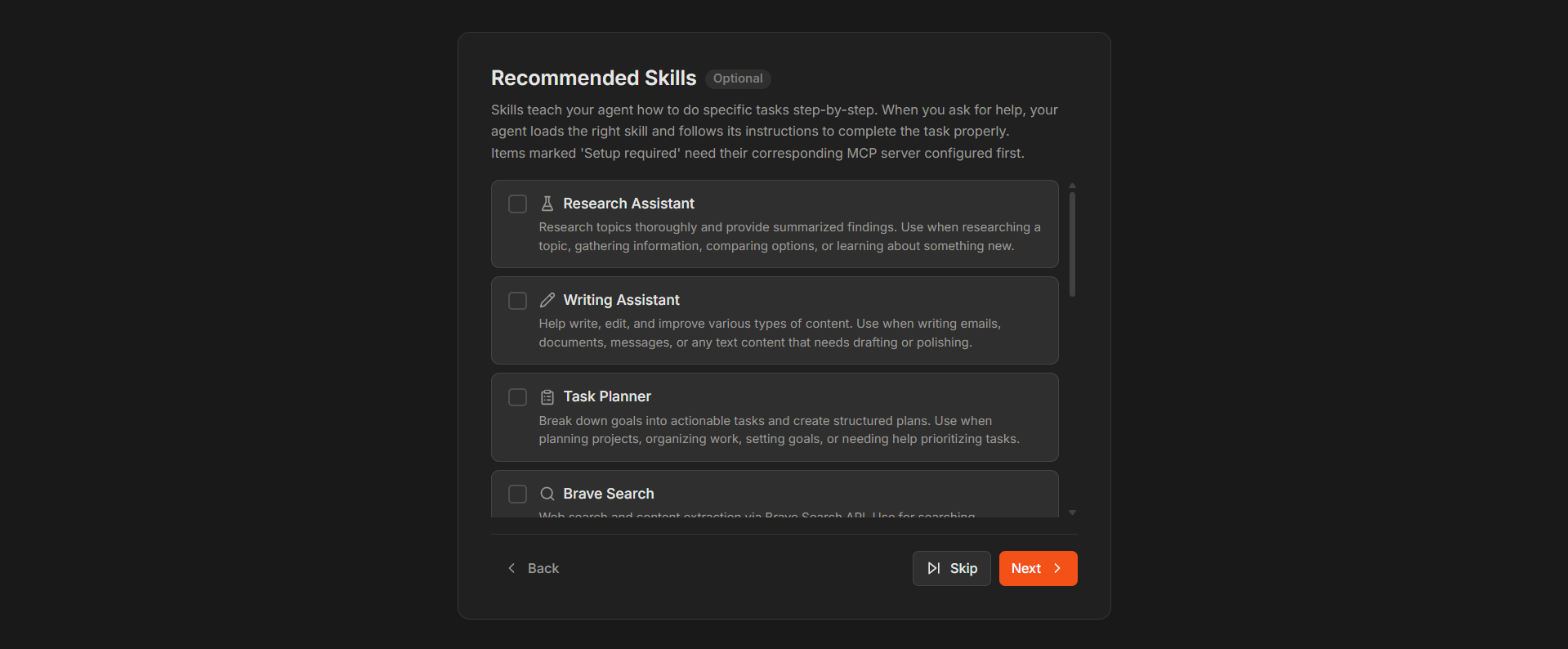
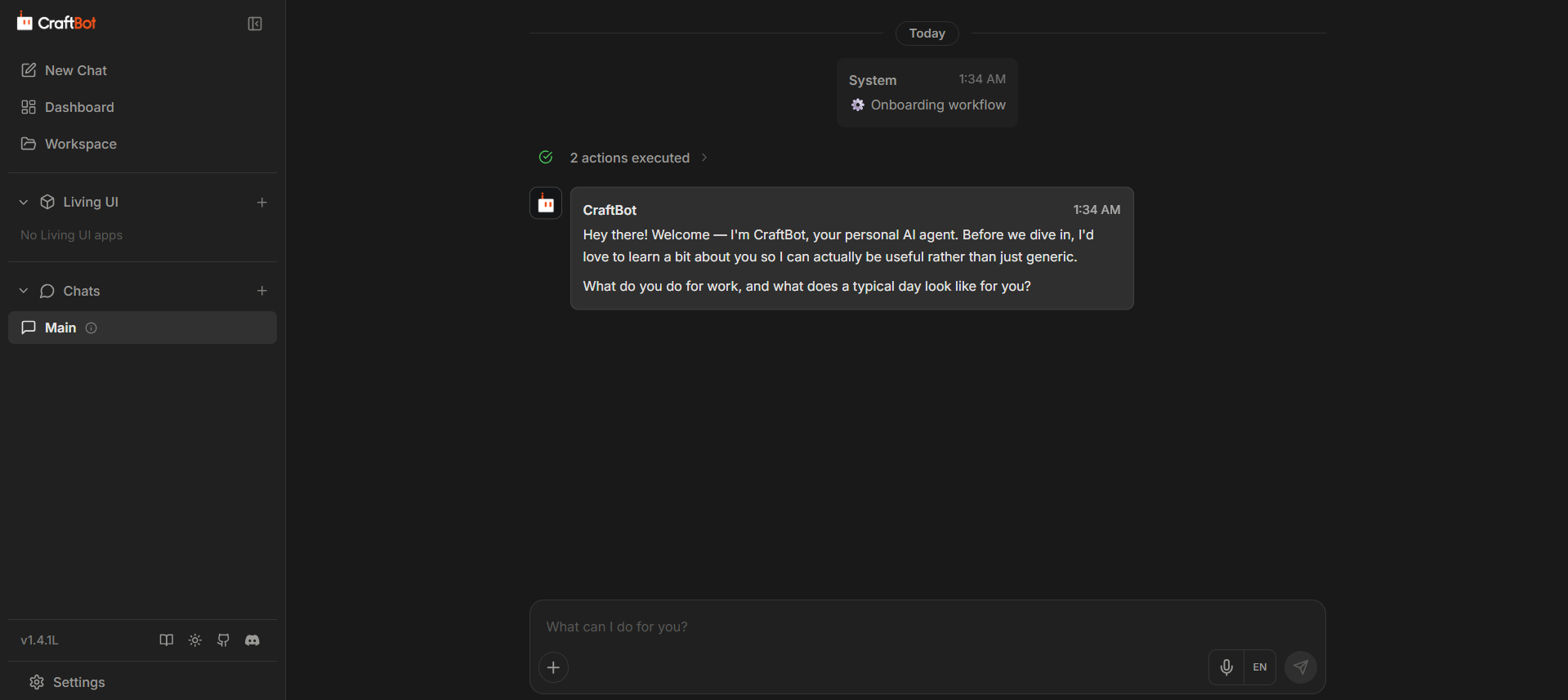
Once that is done, you are ready to go. Your CraftBot is now available.
For Developers
If you want to run CraftBot in your own environment, an open-source version is also available.
GitHub: https://github.com/CraftOS-dev/CraftBot
You can clone the repository and run it with Ollama or in a BYOK (Bring Your Own Key) style using your own API keys. For the full setup process, please refer to the Developer Setup section.
First Chat
Now let’s have your first conversation with CraftBot. The basic experience is not very different from other AI chat tools. You can start with something as simple as, “Check today’s weather for me.”
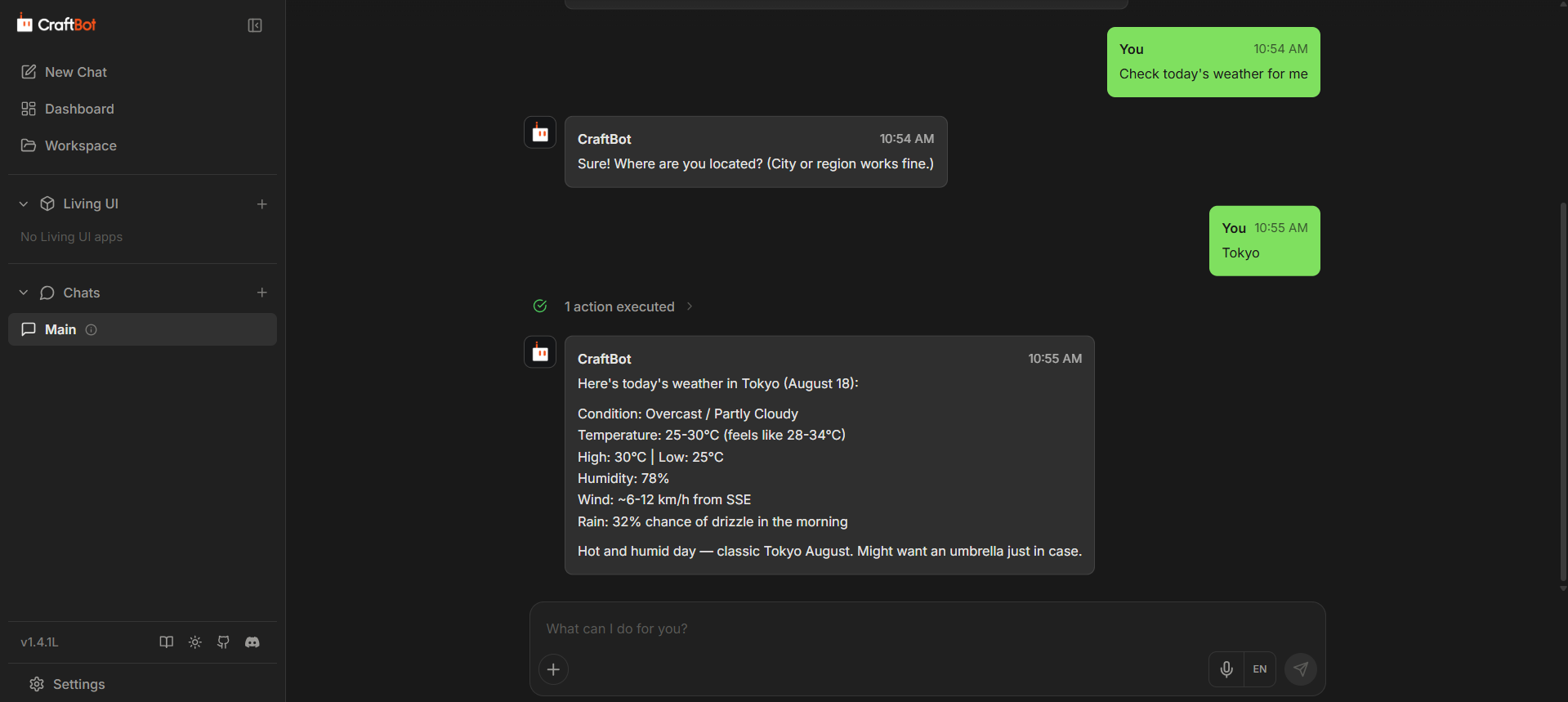
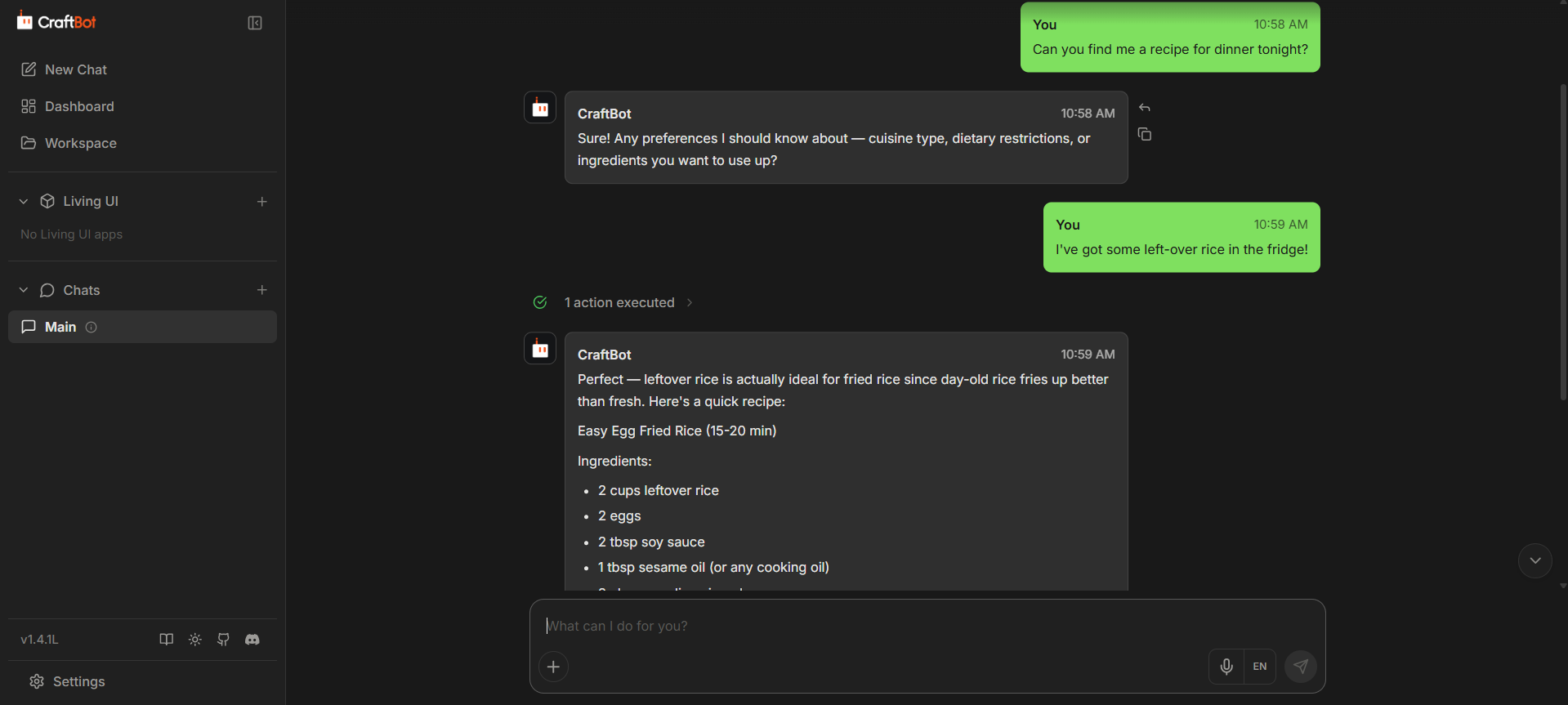
CraftBot can answer while checking up-to-date information when needed. Of course, you can ask for many other things as well, such as “Summarize this news,” “Rewrite this paragraph,” “Plan a trip,” or “Read this file.” There is no need to overthink it at this stage. Just talk to CraftBot the way you would normally talk to an AI assistant and ask it to help.
Main Screen Overview
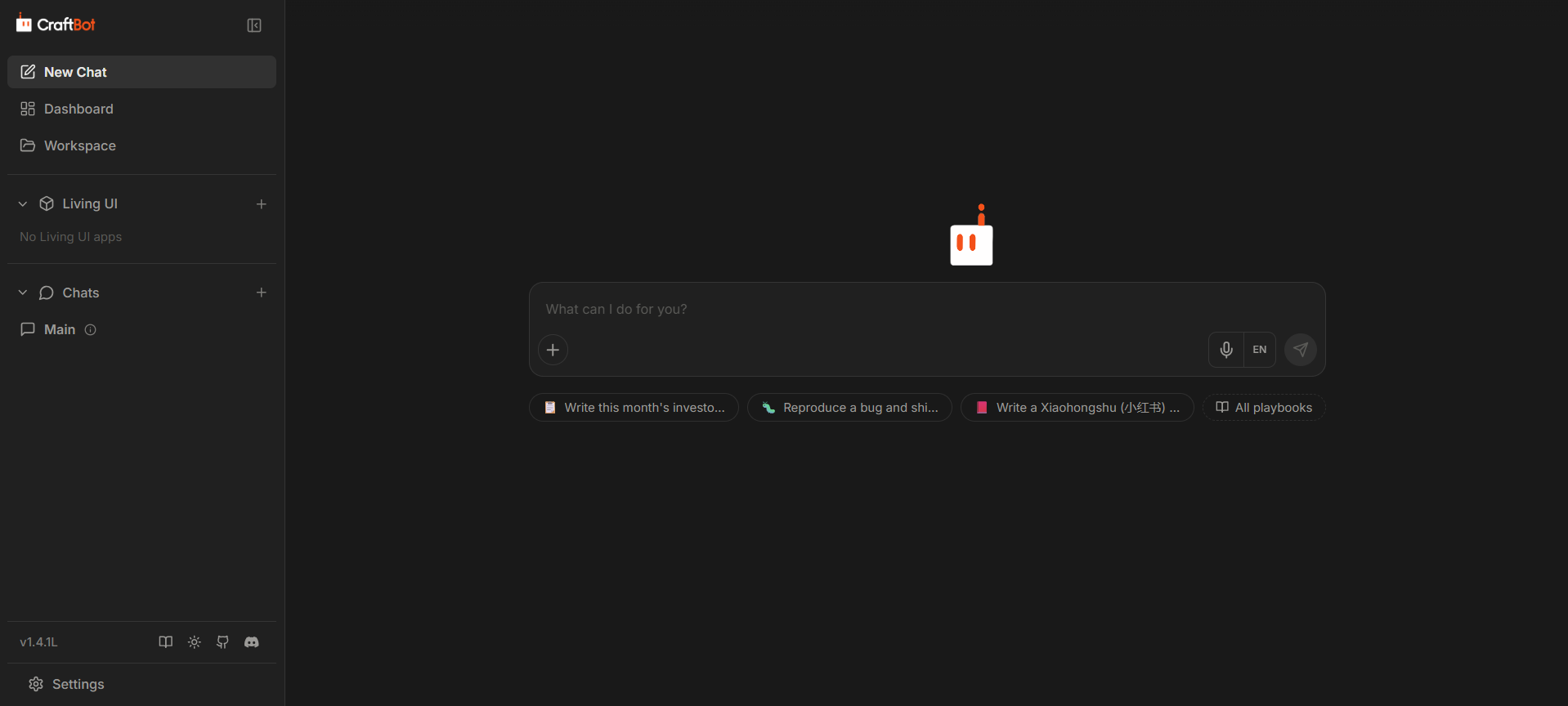
Next, let’s take a quick look at the main CraftBot screen. Here we will briefly introduce each area. More detailed guidance comes later in the sections that follow.
New Chat
A place to start a new conversation. Use it when you want to begin a different topic or a separate task.
Dashboard
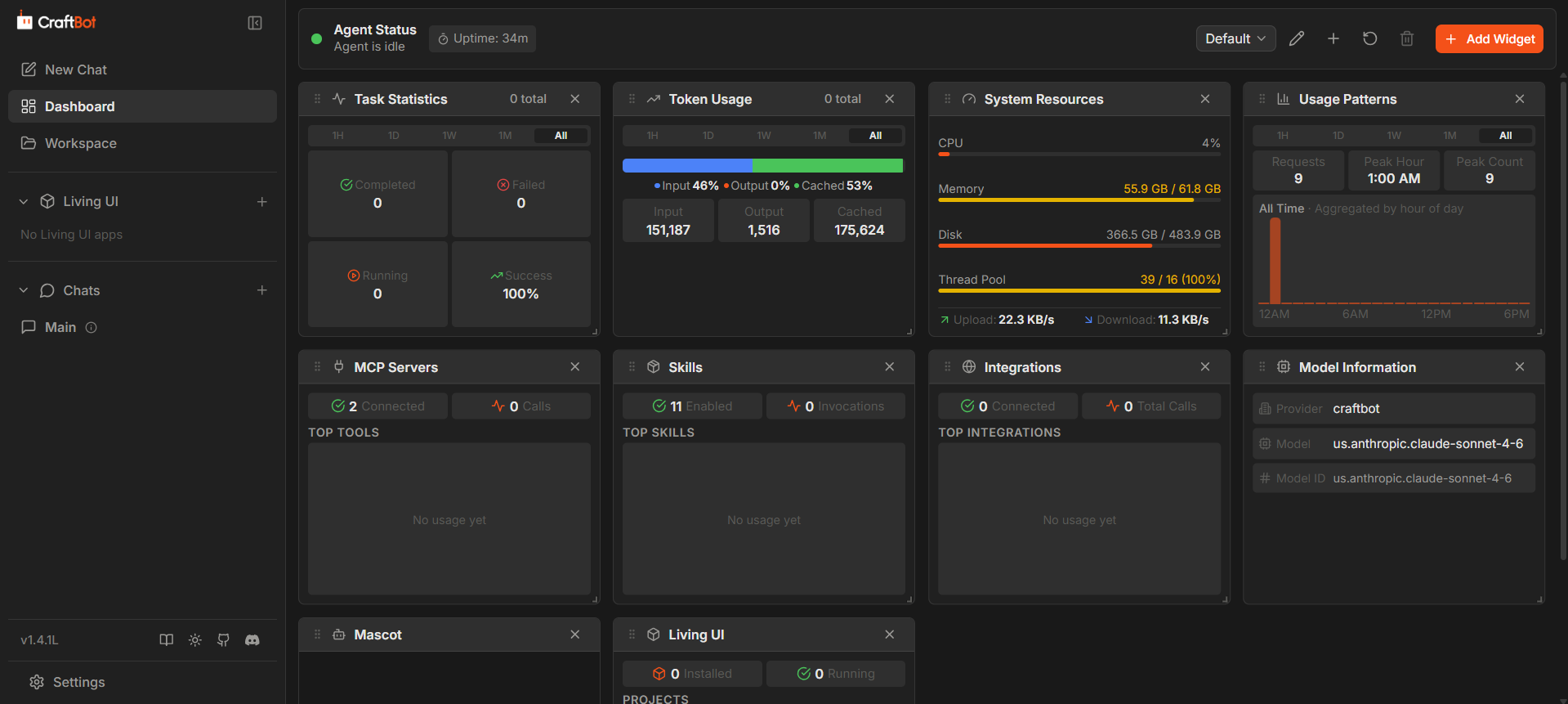
This is where you can check how CraftBot is currently running, including the state of tasks and agents.
Workspace
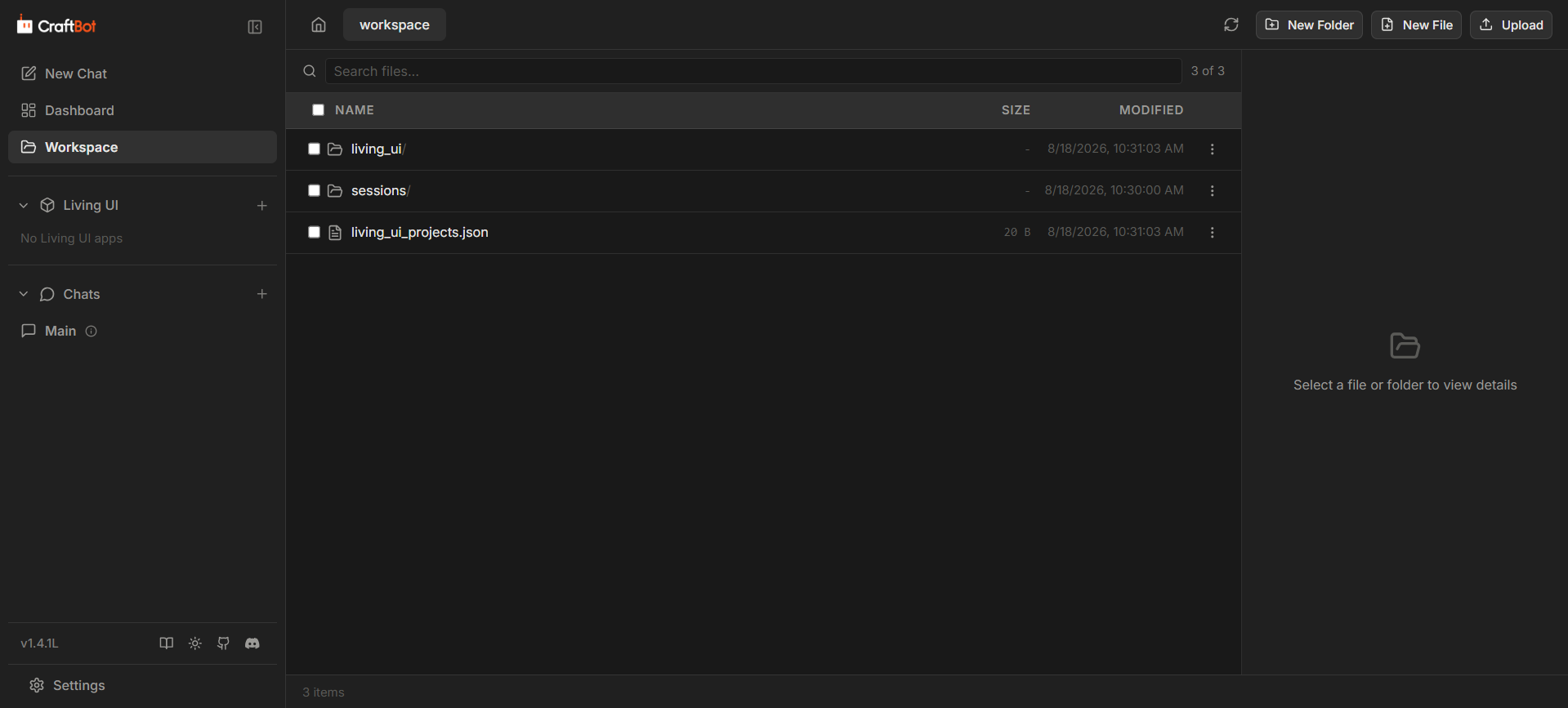
A place where you can find files created or edited by CraftBot, as well as data used during work.
Agent App
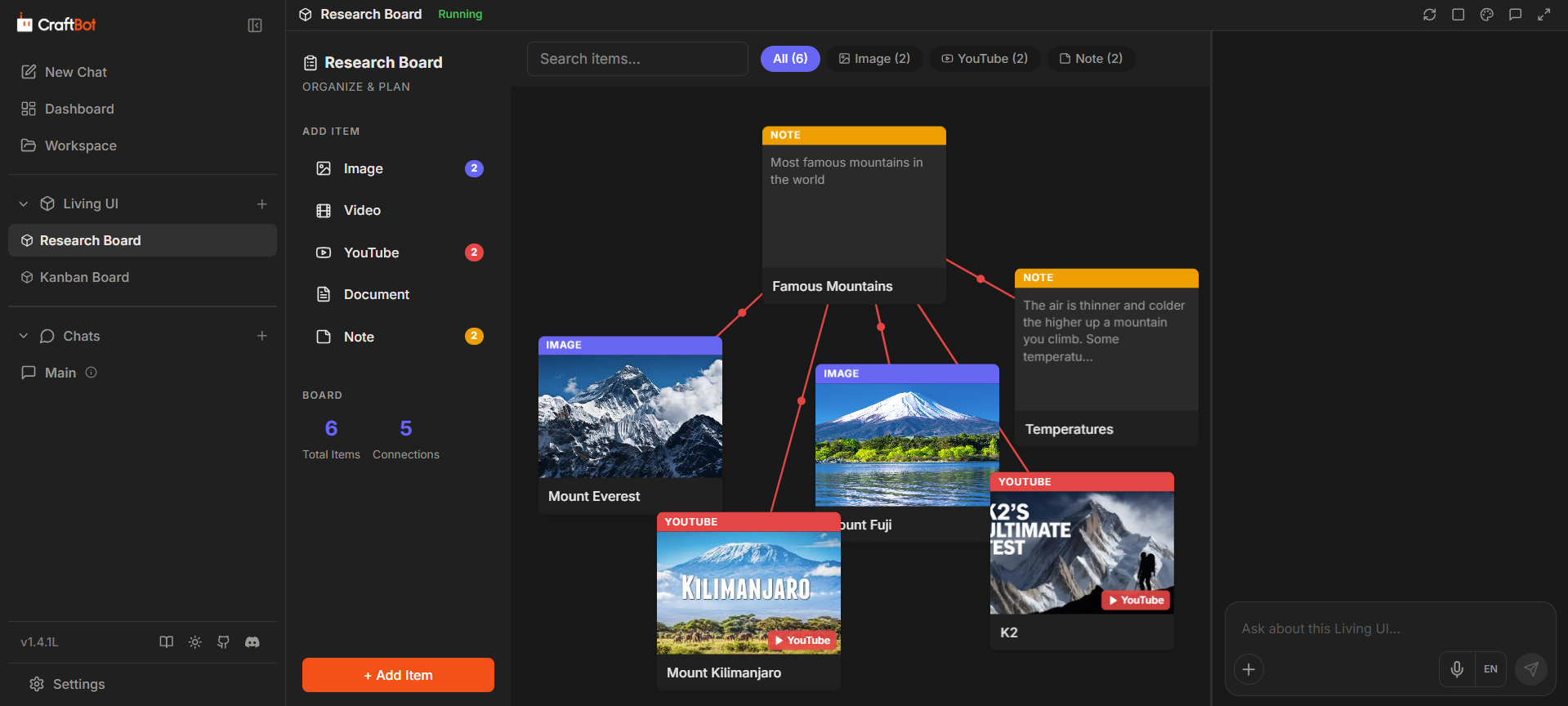
One of CraftBot’s major features. It lets you create AI-native work tools such as Kanban boards or dashboards from natural language and use them together with your agent.
Chat
The central place where you talk with CraftBot. You can ask questions, give work requests, and continue tasks here.
Settings
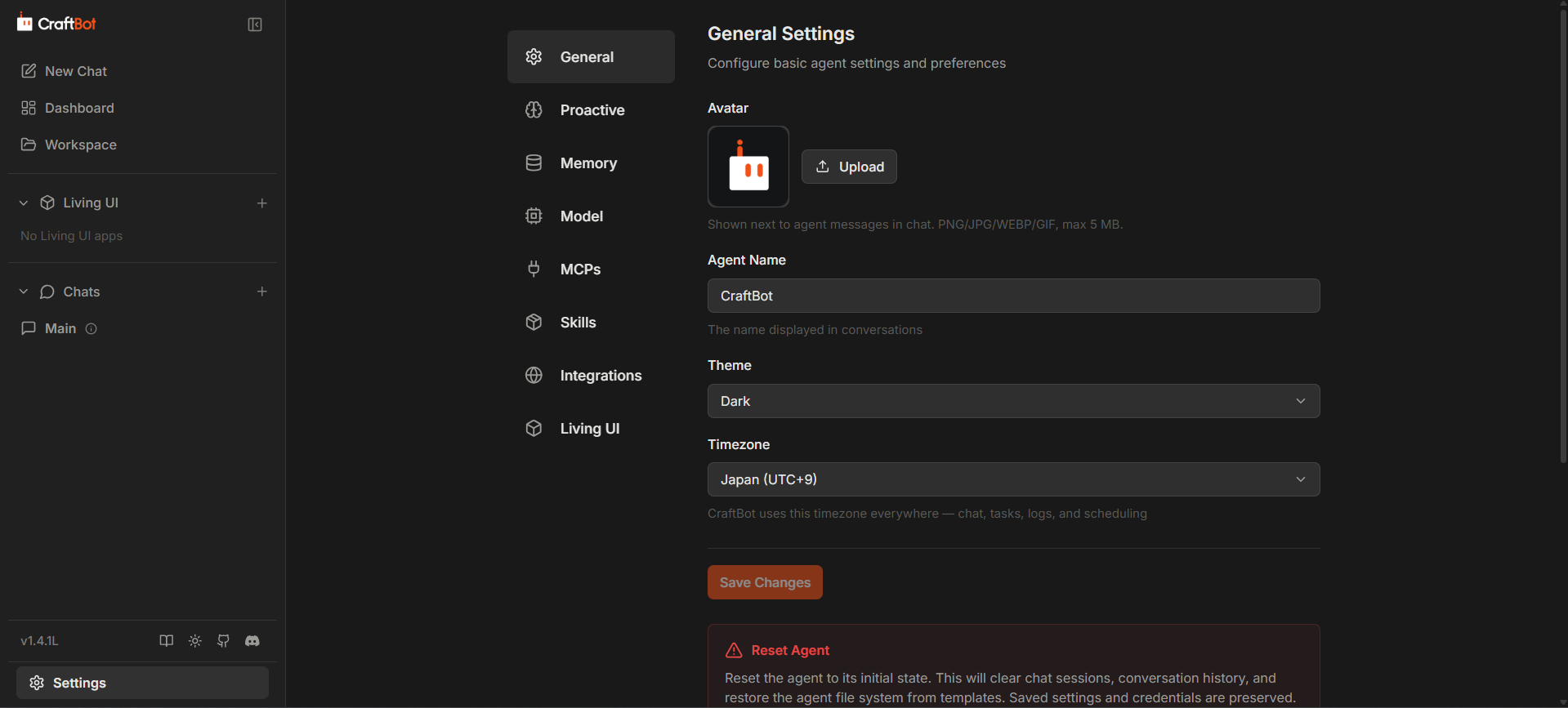
This is where you can change integrations, AI models, Skills, MCPs, profiles, and other CraftBot settings.
You do not need to memorize everything at first. Even if you only explore Chat, Integrations, and Agent App, you can already get a strong sense of the core CraftBot experience.
Your First Integration
With CraftBot, it is relatively easy to begin connecting external apps. You can open Settings → Integrations, choose the app you want to use, and connect it. You do not need to expect a long, complicated setup process from the very beginning.
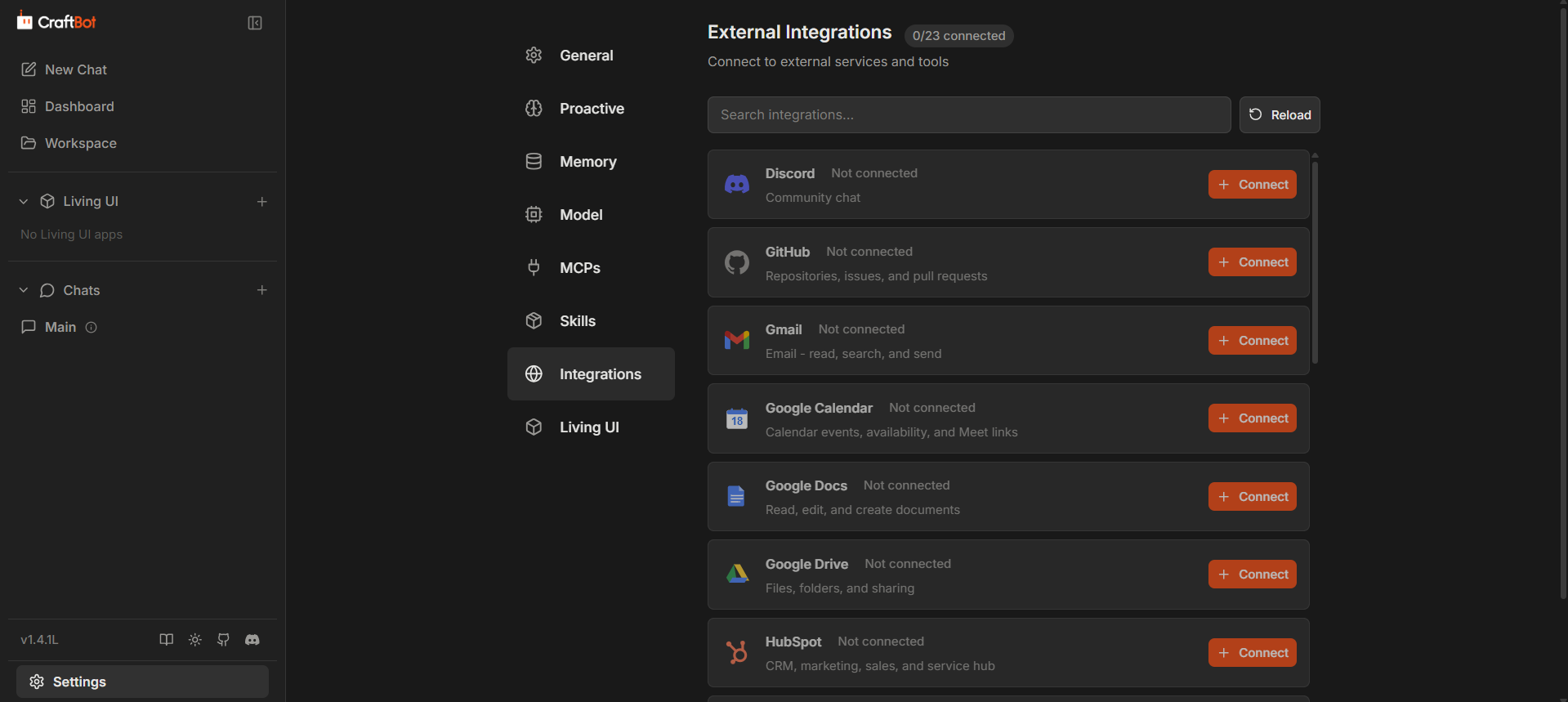
For example, after connecting Gmail, try asking CraftBot something like, “What tasks are still left for me?” CraftBot can review your email content and organize messages that still need replies or items that seem to require action. If you connect WhatsApp or Telegram, it also becomes easier to ask CraftBot to do work from the messaging apps you already use, even when you are away from your computer.
The list of available integrations may change over time, but you can start with services that fit everyday work well, such as Gmail, Google Calendar, Slack, Notion, GitHub, WhatsApp, and Telegram. As a first step, connect just one app that you already use often and start talking to CraftBot through that context. We will cover connection details in the Integrations section.
Your First Agent App
One of CraftBot’s most distinctive features is Agent App. With Agent App, you can create apps inside CraftBot, such as a Kanban board, dashboard, or CRM-style workspace, and then view and operate them together with your agent. Unlike a typical fixed app, you can also keep changing the UI itself later by saying things like, “Add this field,” “Make this easier to read,” or “Add a chart here.”
There are three major ways to create an Agent App.
Start from a Marketplace template
Create one from scratch in natural language
Install an existing project
You can absolutely build one from scratch, but if you simply want to experience what an Agent App feels like, starting from a template is the easiest path.
1. Open Add Agent App
Open the screen where you can add an Agent App.
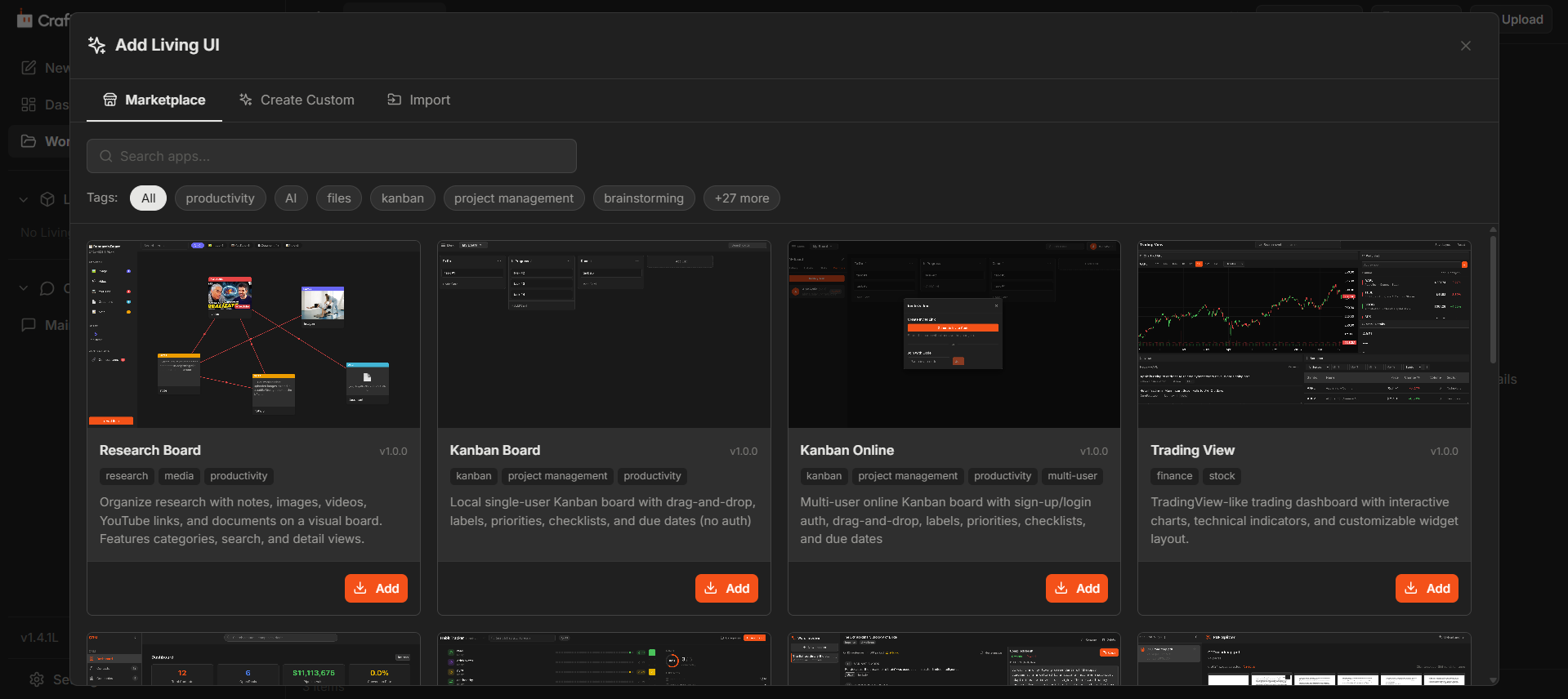
2. Choose a template you like from the Marketplace
For your first try, a simple template such as a Kanban Board is easy to understand.
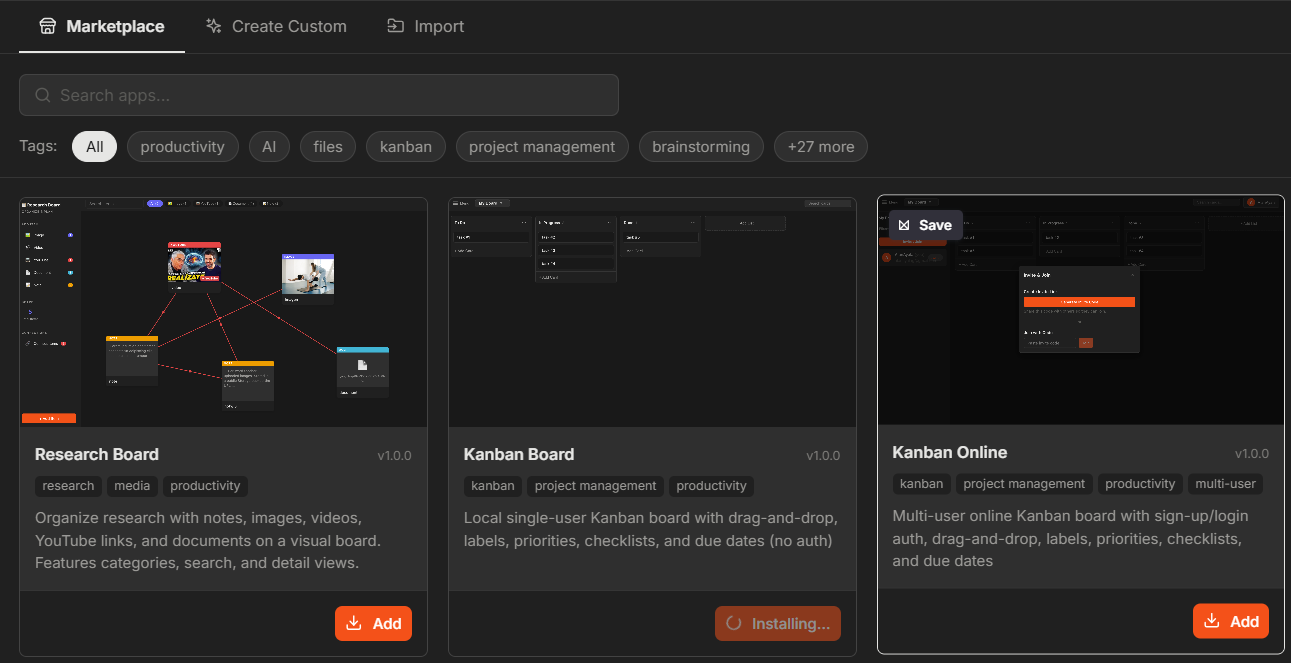
3. Install it and wait a moment
That is enough to finish creating your Agent App.
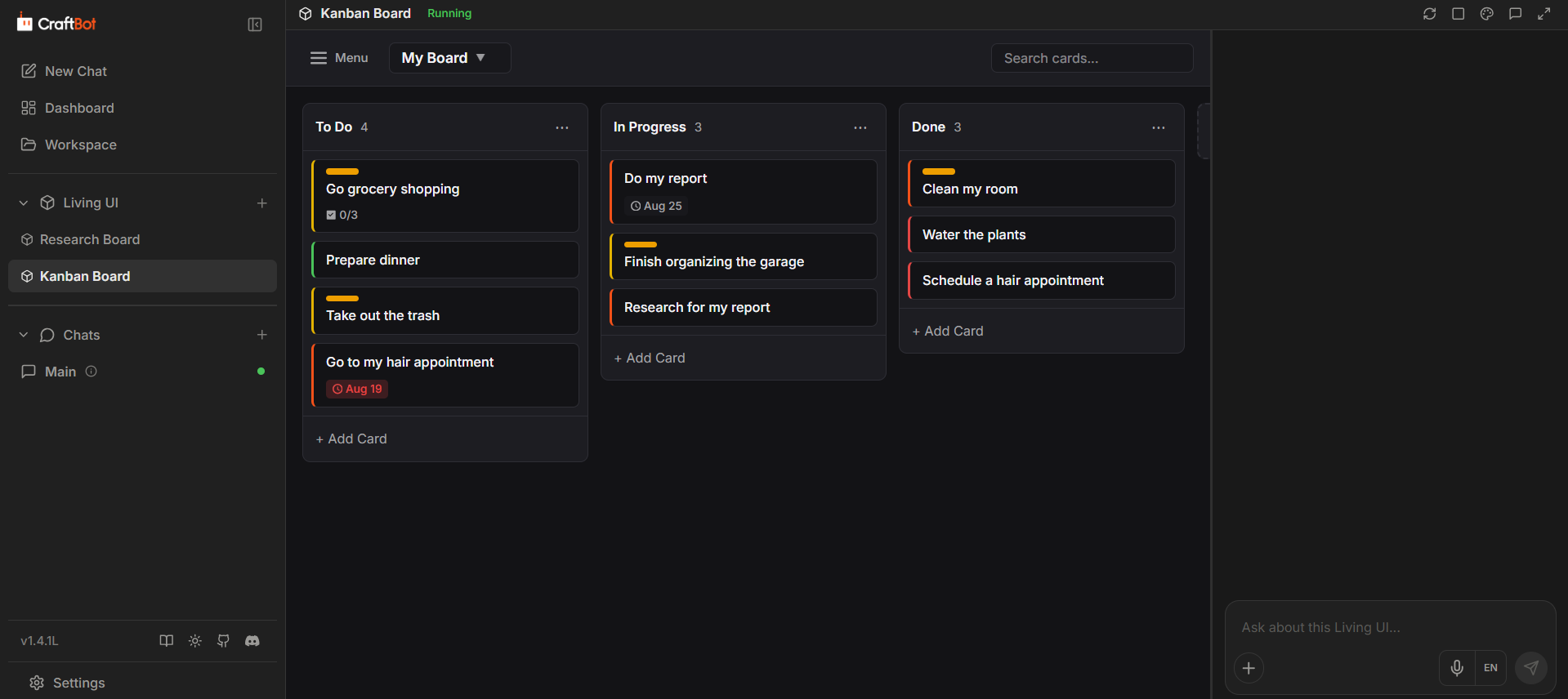
But the interesting part of Agent App is that creation is not the end. After it is installed, try saying something like, “Add a Priority field” to CraftBot. Even when you start from a template, you can still reshape the Agent App into something that fits you better using only natural language.
If you have already connected external apps through Integrations, you can also do things like, “Check Gmail and turn the emails that need action into today’s to-dos on this Kanban board.” CraftBot can review the Gmail content and organize the necessary tasks directly inside the Agent App.
In other words, Agent App is not just a dashboard for viewing information. It is a screen where you and CraftBot can move work forward together. This time we started from a template, but of course you can also create a completely new Agent App from scratch using natural language alone. We will explain that approach, and how to develop Agent App further, in the Agent App section.
Detailed Feature Guide
💬 Using CraftBot
Let’s start with the features you are likely to use most often in daily work.
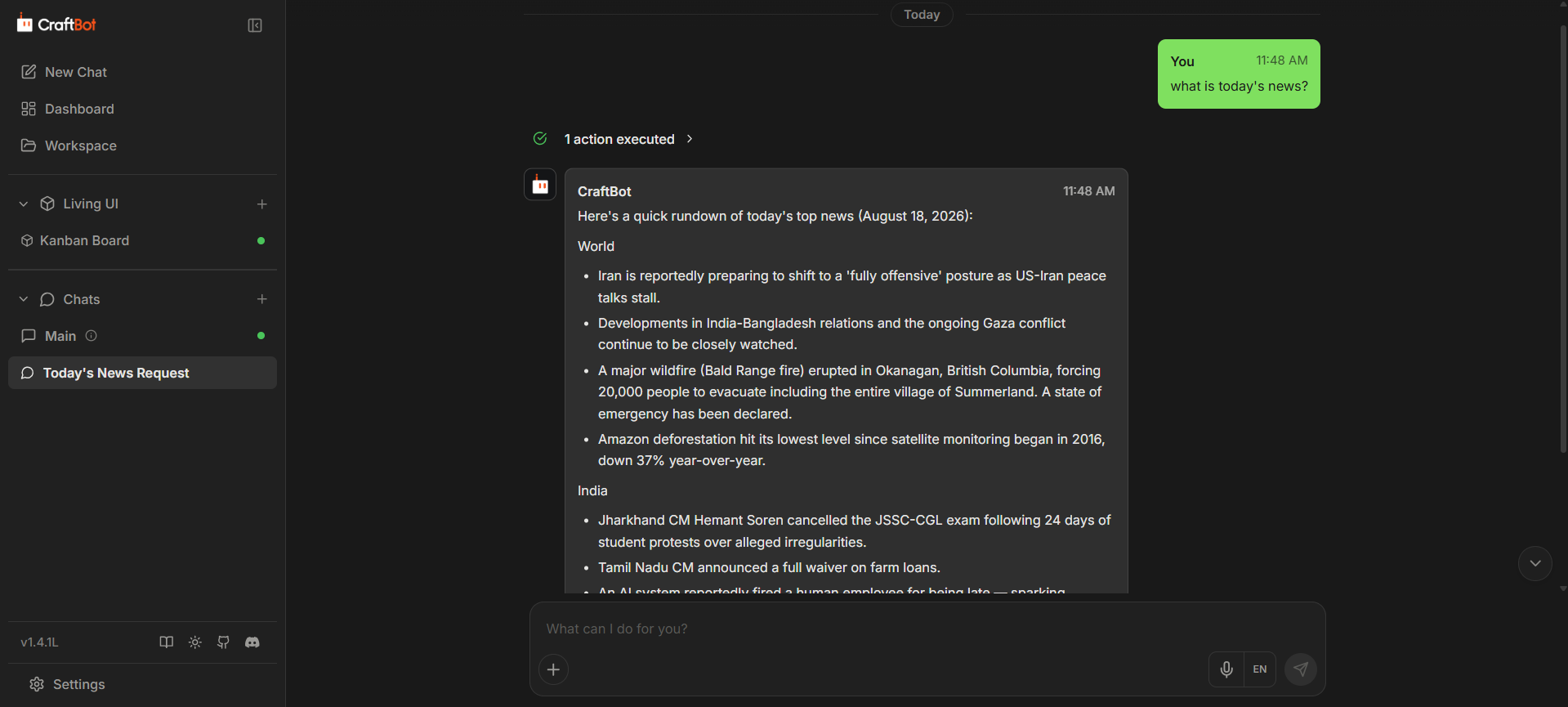
Chat
CraftBot chat includes both Main Chat and Sub Chat. You can use these to separate conversations depending on what you are working on.
The reason Main Chat is different from other chats is that it serves as the home chat for that agent. Because of that, you cannot delete it or rename it. It is also the place where results from scheduled tasks and updates coming from connected apps are more likely to gather, since it acts as the main home for the agent’s ongoing activity.
All chats share the same Memory. That means things the agent learns in one chat may still help it in another chat. At the same time, the message history itself stays separated by chat. Messages from one chat do not simply appear in another. If you want to keep different topics or workstreams separate, creating a Sub Chat is usually the easiest way to do it.
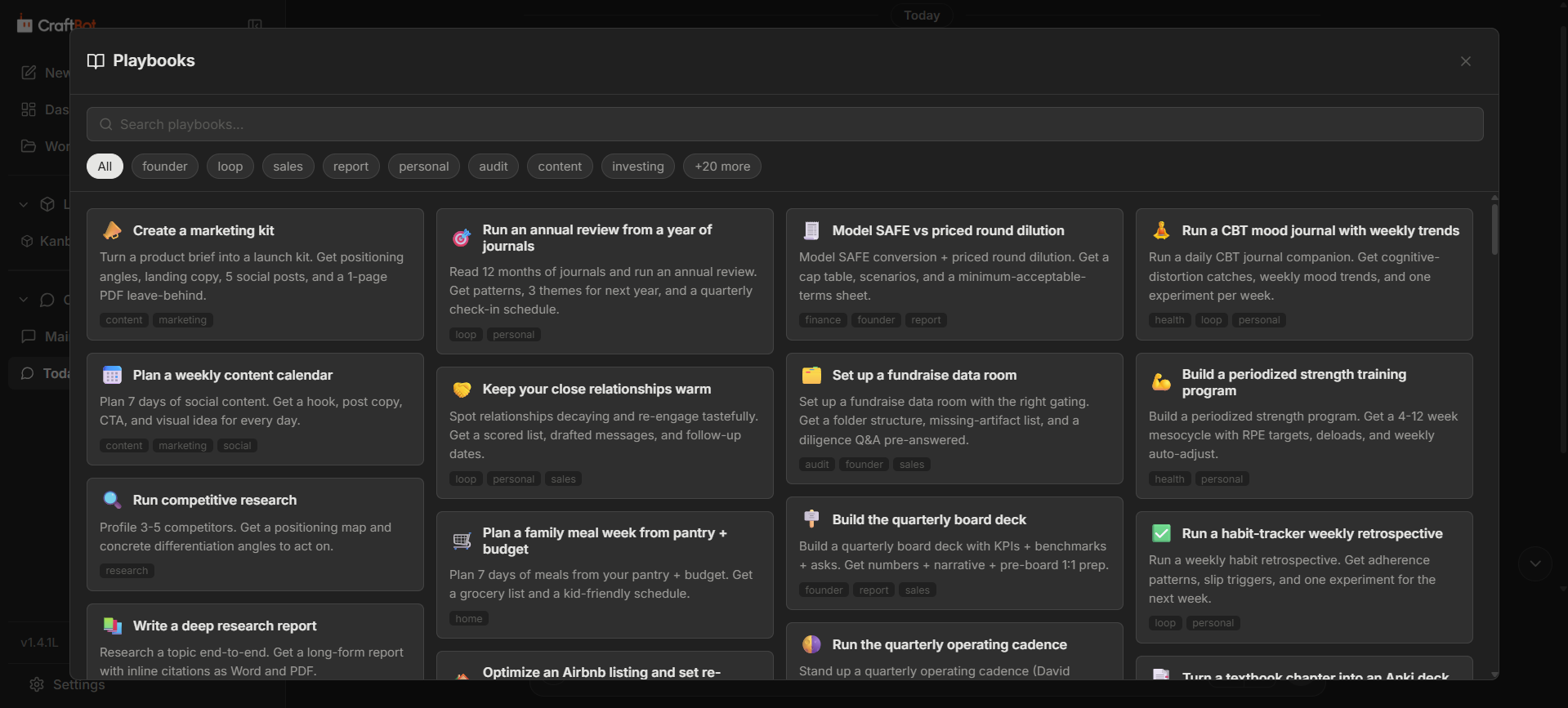
Playbooks
Playbooks provide ready-to-use templates for common use cases, especially for people who are not sure what to start with. By filling in the template, it becomes easier to shape a prompt that fits your goal. If you feel unsure where to begin, Playbooks are often the easiest entry point.
Dashboard
The Dashboard gives you a summarized view of how CraftBot is running right now, how much it is being used, and what it is connected to.
| Title | What it shows |
|---|---|
| Agent Status | Shows whether the agent is active, waiting, or in another state. It can also help you check a rough sense of uptime. |
| Task Statistics | Summarizes task execution, including flows such as completed, failed, running, and success rate. |
| Token Usage | Shows LLM token usage, including breakdowns such as input, output, and cache. |
| System Resources | Lets you check CPU, memory, disk, and network usage in the environment where the agent is running. |
| Usage Patterns | Visualizes trends such as when and how often the agent is used. This is useful if you want to see usage by time period. |
| MCP Servers | Shows how many MCP servers are connected and how they are being called. |
| Skills | Shows how many Skills are enabled and which kinds of Skills are being used more often. |
| Integrations | Shows how many external apps are connected and gives a sense of usage trends. |
| Model Information | Displays the LLM provider and model currently being used by the agent. |
| Mascot | A visual area showing the CraftBot mascot or agent appearance. |
| Agent App | Shows how many Agent App projects are installed and whether any are currently active. |
Workspace
Workspace is the place where you can find files created by CraftBot, data used during work, and final outputs.
It helps to think of it as the place where work results live, including notes, reports, converted files, and other materials. For example, it is useful when you want to revisit a draft, cleaned data, or a document that was created earlier. It becomes especially important for work that does not end inside the chat itself.
If you use CraftBot not just as a conversation partner but as a practical work partner, the importance of Workspace grows even more. Knowing where outputs are stored makes it easier to build a stable workflow.
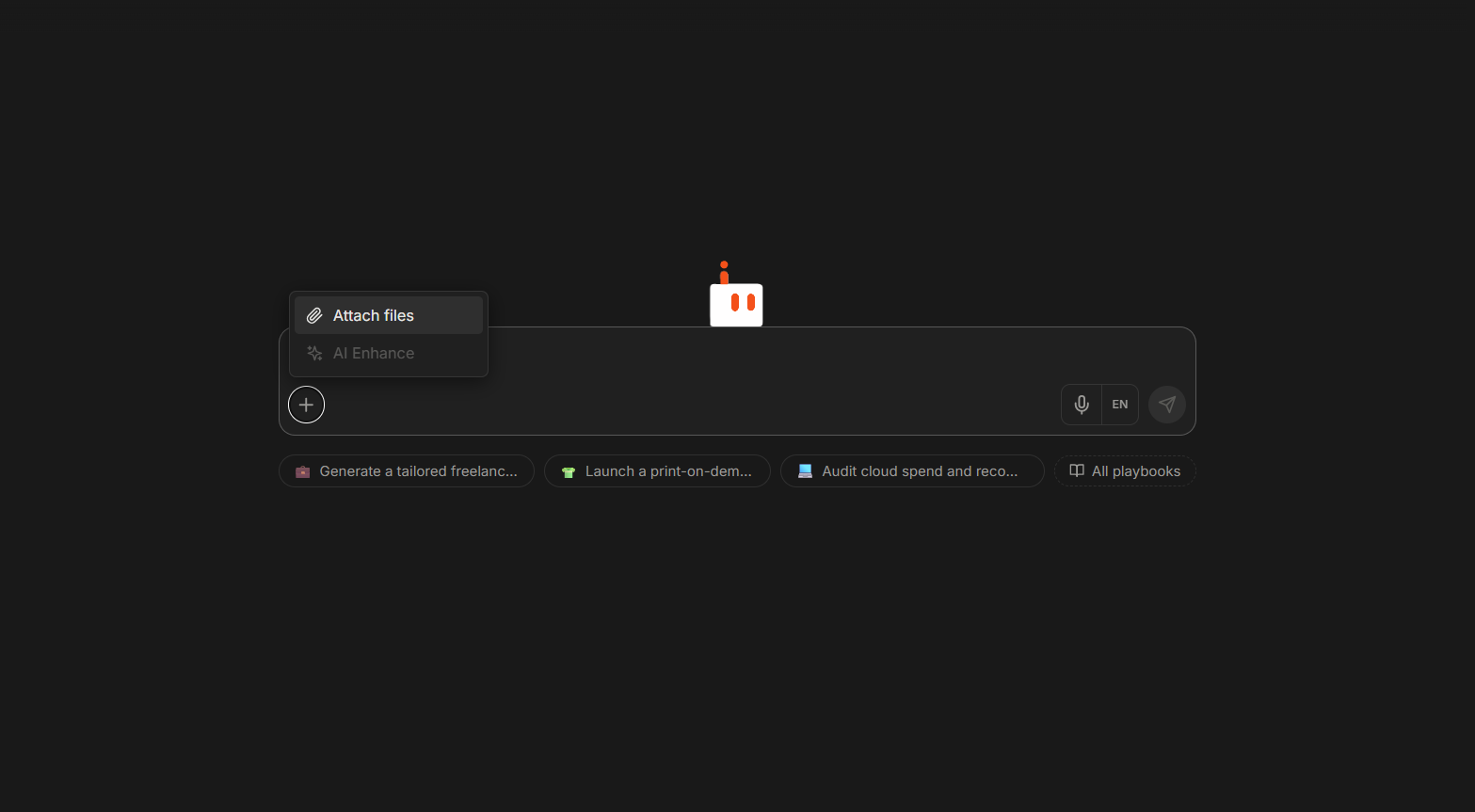
File Attachments
In chat, you can attach files using the button in the interface.
What kinds of files CraftBot can read
With this feature, CraftBot can inspect attached files in different ways depending on the file type. The main file types that are relatively easy to work with are listed below.
Text files CraftBot can read the body text.
PDF files If the PDF contains machine-readable text, CraftBot can usually read the content. Even image-based PDFs may sometimes be processed through OCR.
Word / Excel / PowerPoint files CraftBot can inspect document text, tables, sheet structure, slide structure, and similar contents.
Image files CraftBot can inspect text inside the image, diagrams, layout, and major visual elements.
Structured data such as CSV / JSON CraftBot can inspect the data itself, column structure, and record contents.
There are also a few important limitations to keep in mind.
If a file is corrupted, CraftBot may not be able to read it correctly.
Some special or proprietary formats may not be supported.
Extraction quality may drop for image-only PDFs, handwritten text, or images containing very small text.
For very large files, it is often better to inspect only the necessary parts instead of trying to process the whole file at once.
Password-protected files cannot be read as they are.
For attached files, CraftBot can help with tasks such as the following.
Reviewing contents
Summarizing
Comparing differences
Organizing key points
Suggesting a revision approach
In practice, it is best to use this feature with the assumption that CraftBot is responding based on the real content of the file, not just the file name or appearance.
Prompt Enhance
If you click the sparkle icon, it becomes easier to reshape the prompt you are about to send into something clearer.
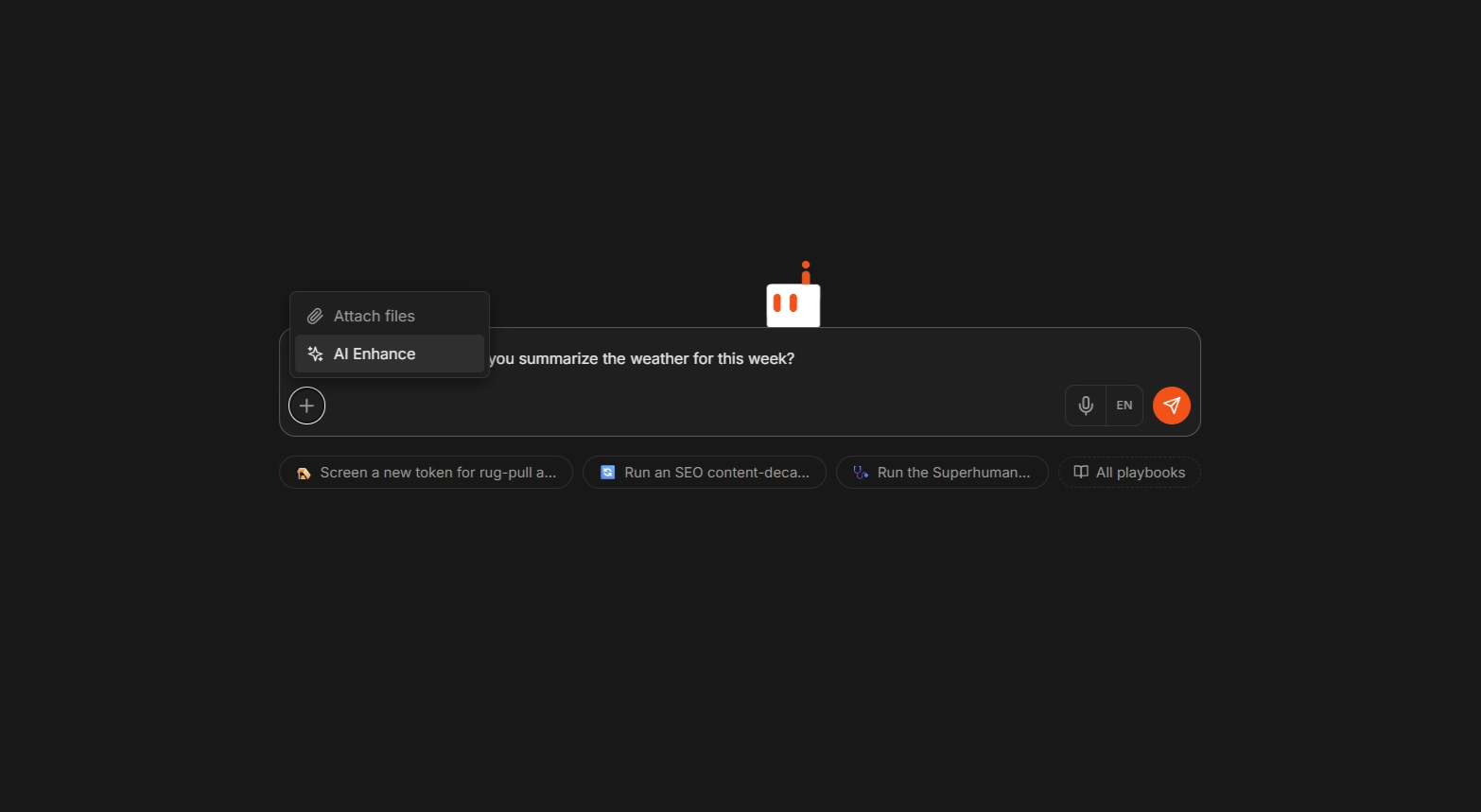
This is useful when your request still feels vague, or when you want to improve the precision of the result a little more.
Agent Status
Working means the agent is currently thinking or processing.
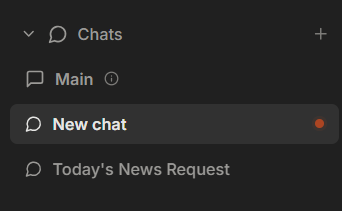
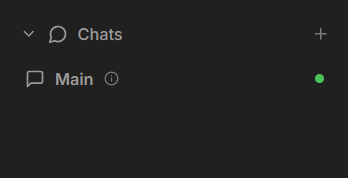
If you see a red status such as an error, it may mean the agent has stopped because of some problem. In that case, it helps to check back later and consult the troubleshooting guidance, along with the context of what you were trying to do. When a task is running in Main Chat or Sub Chat, the status display can also change. The way it looks during execution and after completion may differ, so it can serve as a simple indicator of whether work is still in progress.
Language Settings
Language Settings lets you set the default response language and display language for CraftBot. Even so, during actual conversations, CraftBot may still respond based on the language the user is currently using.
🖥️ Agent App
Agent App is one of CraftBot’s most distinctive features. In simple terms, it is a work screen you can create together with AI and continue improving over time.
With a typical chat tool, the conversation often ends once you receive an answer. Agent App is different. Instead of stopping at a reply, you can create a screen that helps you continue the work itself.
For example, you can build things like a task board, a customer management screen, an internal dashboard, or a workspace for organizing information. The important point is that this is not just a static screen you look at once. It is something both you and CraftBot can keep using together.
Add an Agent App
There are three main ways to add an Agent App. Marketplace lets you install a ready-made template. This is the easiest way to get started if you want to try Agent App quickly. Create Custom lets you describe what you want in natural language and have CraftBot build a new Agent App from scratch.
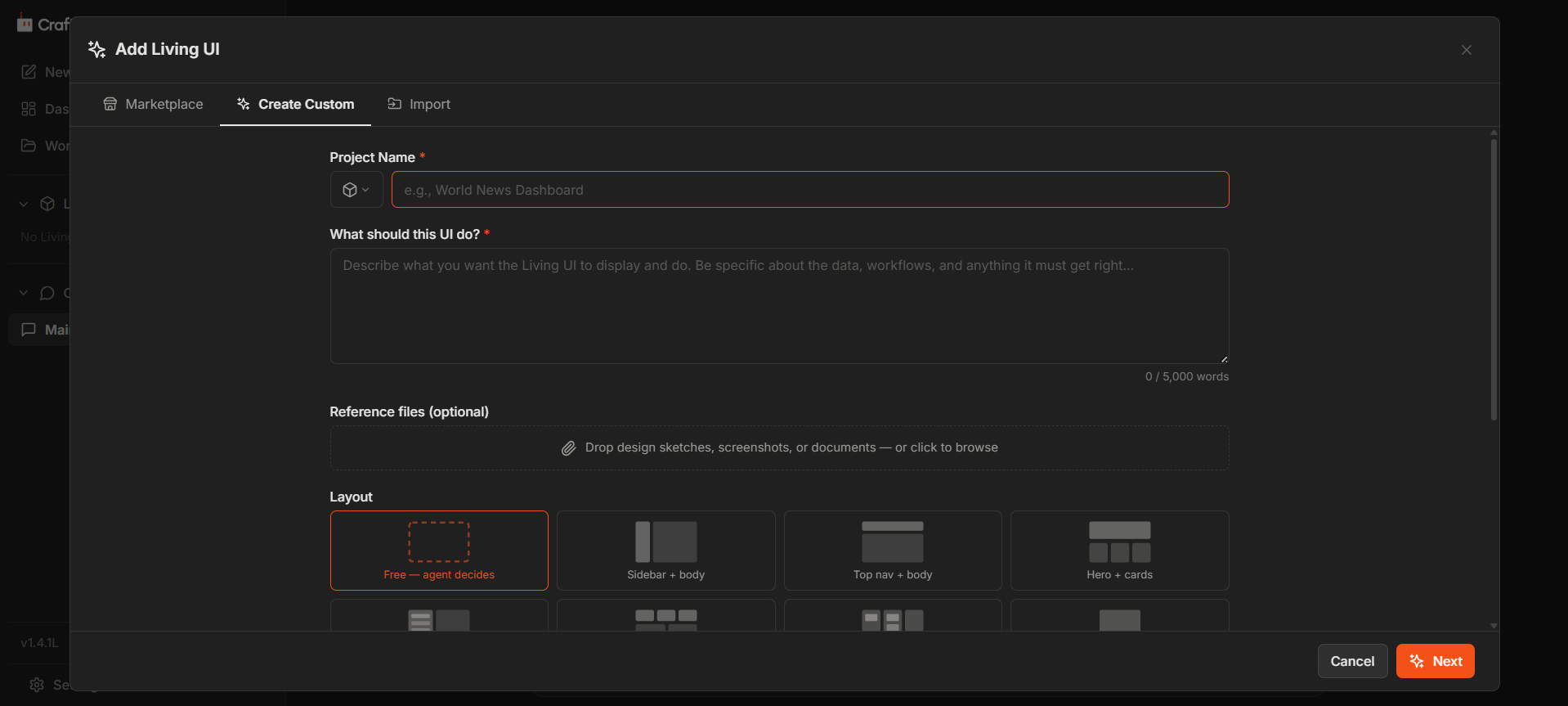
Install Existing Agent App lets you bring in a project that already exists and continue using or adapting it inside your environment. If this is your first time, starting from Marketplace is usually the smoothest option because you can understand the overall experience before deciding how much you want to customize.
Marketplace
Marketplace is a place where prebuilt Agent App templates are collected. It is useful when you want to begin from something concrete instead of starting with a blank page.
You may find templates for things like Kanban boards, CRM-style screens, dashboards, customer support views, or other work-focused layouts. The available templates may change over time, so it is best to think of Marketplace as a starting point rather than a fixed catalog. A template is not the final form. It is simply a faster way to begin with a structure that already fits a familiar workflow.
Create custom
If you already know the kind of screen you want, you can create an Agent App from scratch in natural language. For example, you can describe the purpose of the screen, the kinds of data you want to manage, and the way you want it to be displayed. CraftBot can then build an initial version based on that explanation. This is especially useful when your workflow does not fit standard templates well, or when you want to create something tailored to your own team’s way of working.
Import
If you already have an existing Agent App project, you can import it and continue working from there.
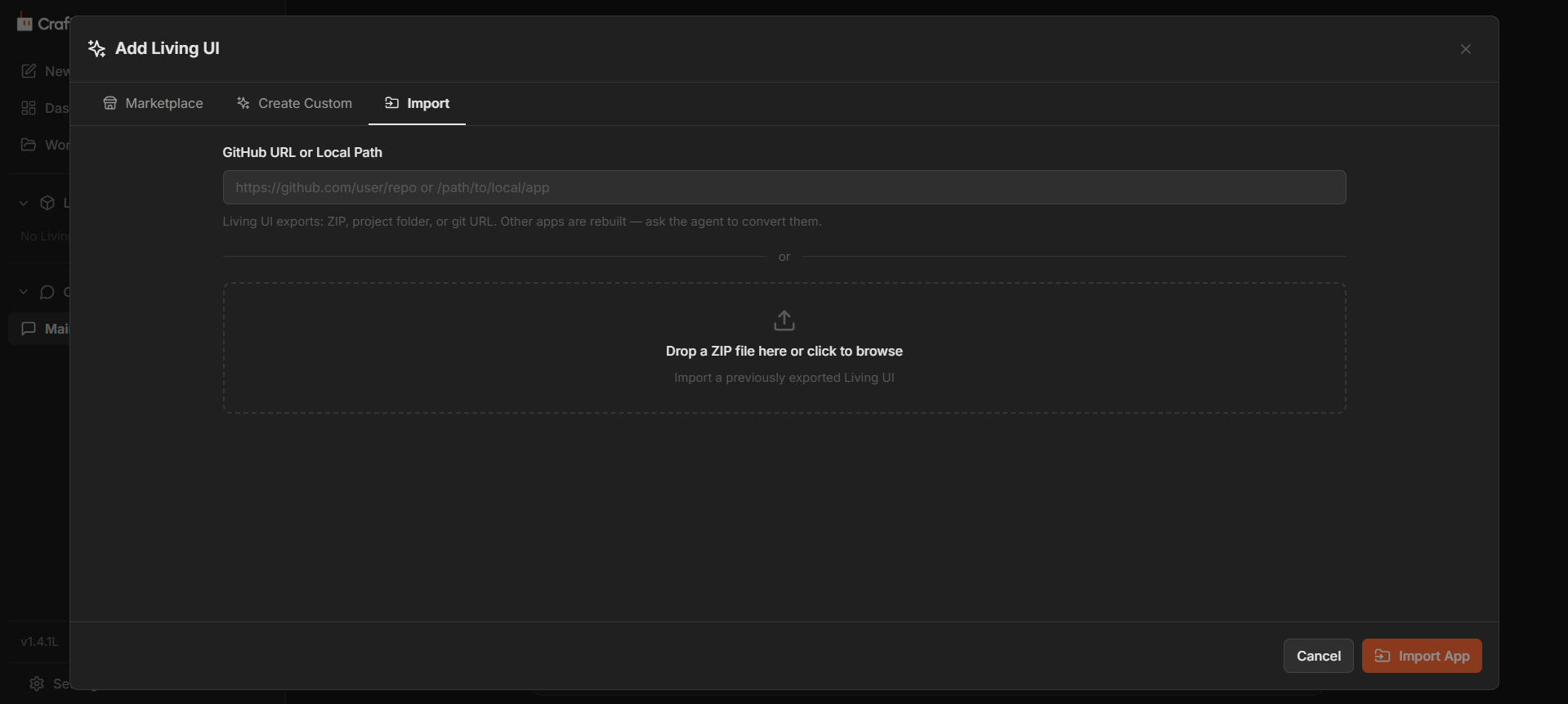
This is helpful when you want to reuse a screen that was prepared earlier, share a project inside a team, or continue development without rebuilding it from the beginning.
After installation
An Agent App becomes more valuable after it has been installed. Once it exists, you can keep refining it through conversation. You might ask CraftBot to add a field, change the layout, reorganize how information is shown, or make the screen easier to use for a specific workflow. This means the UI is not locked in place from day one.
Because of that, Agent App is not just a place to display results. It is an operating space where work continues to evolve.
Operate with CraftBot
One of the most important points about Agent App is that it is something both people and CraftBot can work with. You can ask CraftBot to read the current state of the screen, update it, or use it as the basis for the next step in a workflow. In the other direction, you can also look at the screen and decide what to ask CraftBot to do next. This shared context makes Agent App very different from a normal dashboard that only humans look at.
Use it together with Integrations
Agent App becomes even more useful when it is combined with Integrations. For example, you can connect external tools, pull in the information you need, and then organize that information inside an Agent App that both you and CraftBot can use. This makes it easier to turn scattered data into something you can actually operate with. Instead of checking one tool after another, you can gradually build a work surface that matches how your work really moves.
Settings > Agent App
Inside Settings > Agent App, you can review and adjust the basic setup for your Agent App projects.
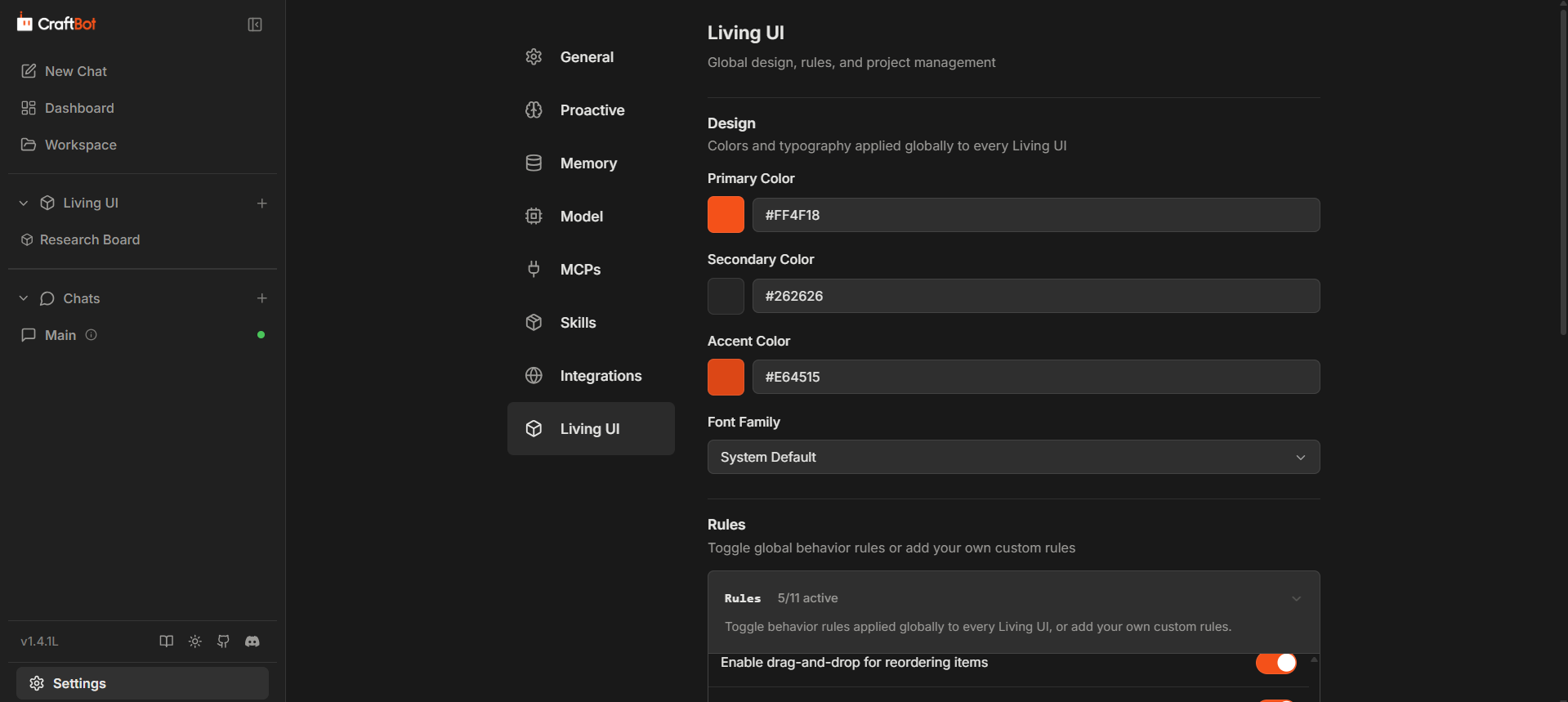
Design is where you review visual and structural aspects of the screen. Rules is where you define how the Agent App should behave or what operating principles it should follow. Projects is where you can review and manage the Agent App projects that already exist. These areas help you treat Agent App not as a one-time experiment, but as something you can keep operating and improving.
🔌 Integrations
Integrations are what connect CraftBot to the tools where your real work already happens. Without integrations, CraftBot mainly works from what you type into chat and the files you provide directly. Once integrations are connected, it becomes easier for CraftBot to work with the actual flow of your email, documents, schedules, customer data, messages, and other day-to-day systems.
The point is not simply to connect as many apps as possible. The point is to connect CraftBot to the work context that matters most to you.
Three broad roles of integrations
It helps to think of integrations in three broad categories.
The first category is conversation channels. These are apps you can use as the place where you talk with CraftBot, such as messaging or chat tools.
The second category is work tools. These are apps whose data CraftBot can read from or write to, such as documents, calendars, project tools, or business systems.
The third category is notification or input routes. These are tools that can become an entry point for events, updates, or lightweight requests that later turn into work inside CraftBot.
A single app may fit more than one role depending on how you use it, so it is better to think in terms of practical use rather than strict categories.
Examples of connected tools
The set of available integrations may change over time, but CraftBot is designed to connect with a broad range of tools used in everyday work. Examples include communication tools such as Slack, WhatsApp, Discord, Telegram, and LINE; work tools such as Gmail, Google Calendar, Google Docs, Google Drive, Notion, Outlook, GitHub, Jira, HubSpot, and Stripe; and channels such as YouTube, Twitter/X, and LinkedIn depending on what kind of work you want to support.
The important thing is not to memorize the full list. It is to identify which one or two services are closest to the work you want CraftBot to help with first.
How to start
If you are unsure where to begin, start with the app that is already closest to your daily workflow. If email is the center of your work, start with Gmail. If your team works through chat, Slack or WhatsApp may be the easiest entry point. If you manage information across pages and databases, Notion may be a better first step.
Connecting just one app is often enough to make CraftBot feel much more concrete and useful.
Integration settings
Inside Settings > Integrations, you can review the apps that are available and manage how they connect to your CraftBot.
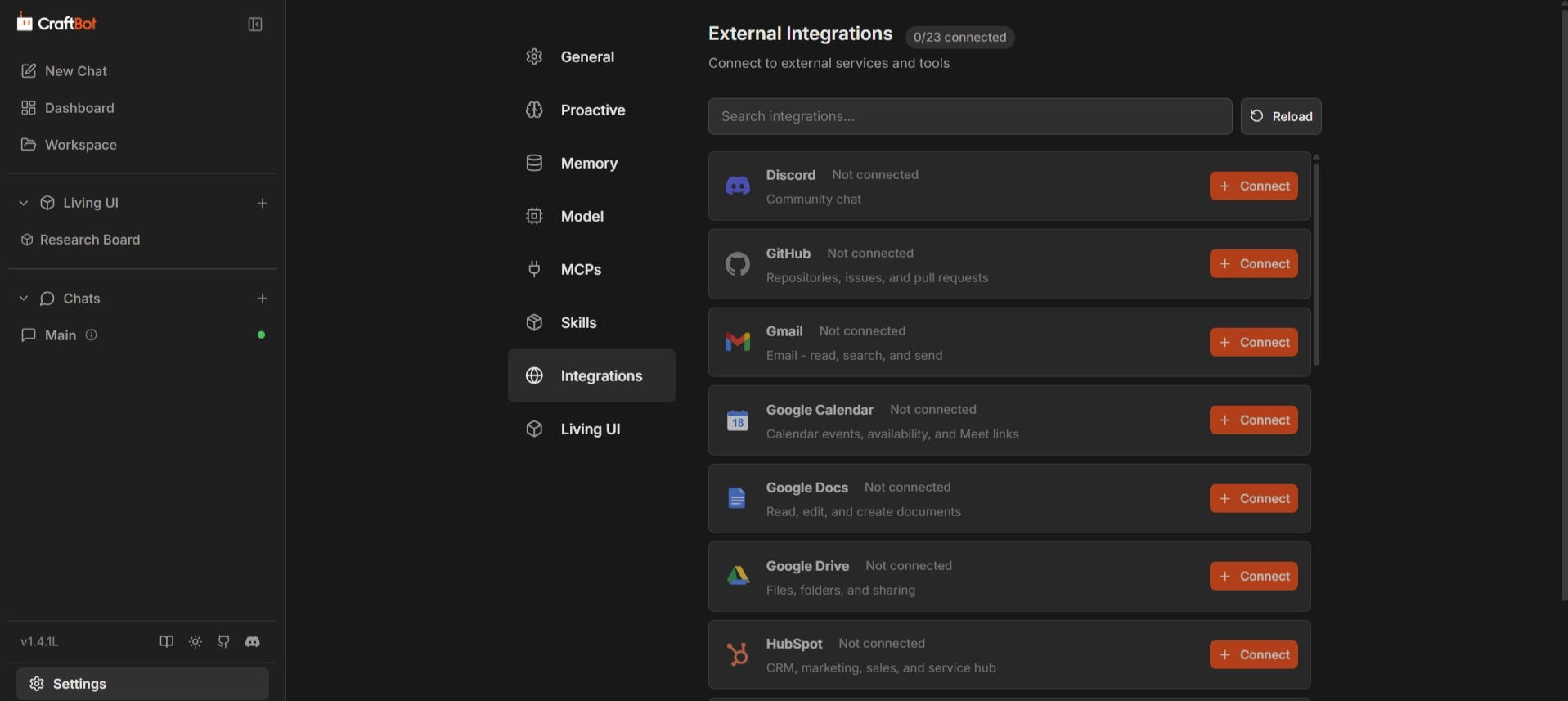
Depending on the app, you may see items related to connection setup, input sources, roles, or trusted administrators. The exact setup differs by integration, so it is better to think of this area as the control point for how each external tool joins your workflow.
Some integrations mainly become a place where you talk with CraftBot. Others mainly act as data sources or operation targets. In either case, the goal is to make work move more naturally across the tools you already use.
🤖 Customize Your Agent
One of CraftBot’s strengths is that you are not limited to using it in exactly the same way as everyone else. You can gradually shape your agent so that it fits your role, your tone, your priorities, and your team’s working style. The more closely the agent matches the way you actually work, the easier it becomes to rely on it in daily operations.
Agent Profile
Agent Profile is the place where you shape the character and working style of your CraftBot. This is less about technical fine-tuning and more about deciding what kind of working partner you want the agent to be. For example, you may want it to be more concise, more careful, more proactive, or more aligned with a specific business role. Thinking in this way often leads to better results than trying to tune everything through isolated settings alone.
Import CraftBot
CraftBot can also be imported in reusable forms. If you already have a prepared setup, or if someone on your team has created a useful configuration, you can bring that setup into your environment instead of rebuilding everything from scratch. This makes it easier to share useful agent setups across people or across teams.
Agent Bundle
An Agent Bundle is a packaged CraftBot setup that can be shared or installed. This is useful when you want to distribute not just a single idea, but a more complete starting point that includes a certain role, behavior, or work style.
Agent Bundles can also be found through the Marketplace. They are often shared in a .craftbot format so they can be installed more easily. If you want to explore what kinds of prepared setups already exist, the Marketplace is a good place to start.
🧠 Memory
Memory helps CraftBot stay useful across ongoing work instead of treating every interaction as completely unrelated. When memory is enabled, CraftBot can retain distilled information that may help with future work, such as preferences, recurring context, or important patterns from previous interactions.
This does not mean it simply keeps everything forever in the same way as a raw chat log. It is better to think of memory as a mechanism for preserving what is worth carrying forward.
Enable or disable memory
In Settings > Memory, you can turn memory on or off.
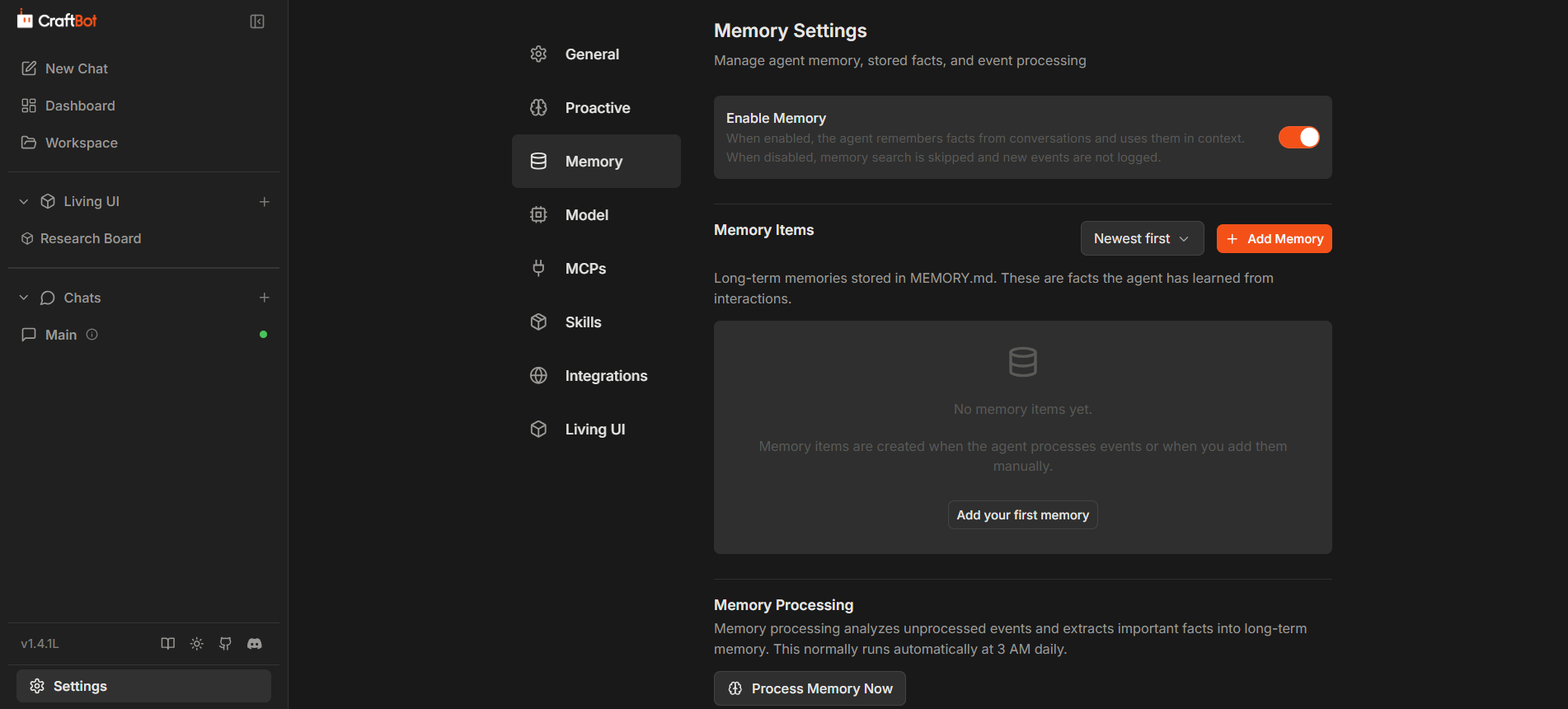
When memory is enabled, CraftBot can use stored memory in future work and continue building new memory from ongoing activity. When memory is disabled, CraftBot stops using stored memory in its work and also stops building new memory going forward. In practical terms, this means both memory recall and new memory accumulation stop.
Memory Items
Memory Items are the individual pieces of distilled information that CraftBot keeps. These are not meant to be a full copy of every conversation. Instead, they represent the parts that seem important enough to remember over time. This makes memory more focused and more useful than simply storing everything without structure.
Memory Processing
Memory Processing is the step that reviews recent unprocessed activity and turns the important parts into durable memory. In normal operation, this tends to run automatically on a regular schedule. The goal is to keep memory concise and useful instead of letting it become a raw pile of unorganized events. You can think of it as a background step that helps CraftBot decide what is worth remembering.
Reset Memory
Reset Memory clears the stored memory for the agent and also clears unprocessed event material waiting to be turned into memory. Because this cannot be undone, it is effectively a full memory reset for that agent. You should treat it as a deliberate decision, not a casual cleanup action.
Skills
Settings > Skills is where you give CraftBot specialized workflows for different kinds of tasks.
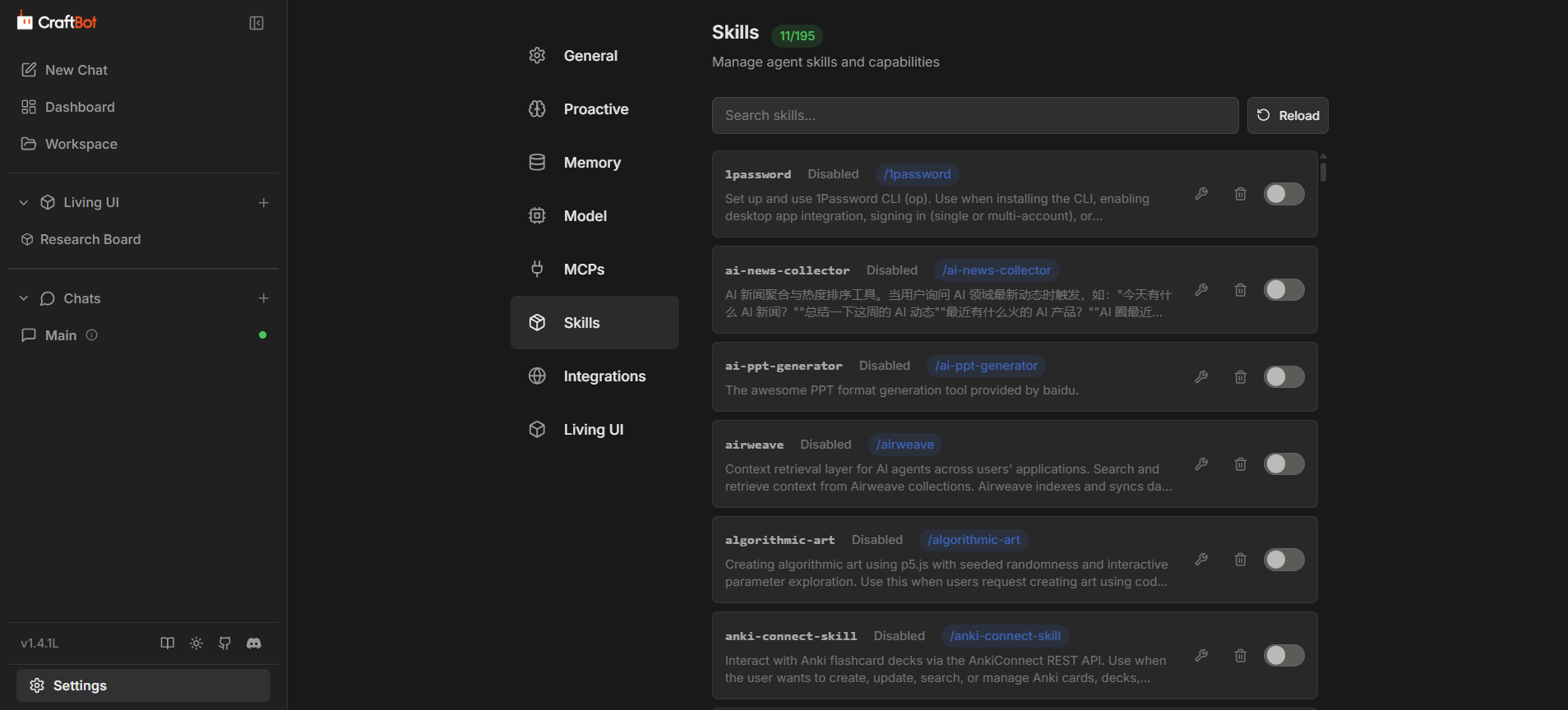
For example, some Skills are designed to help with document writing, PDF handling, spreadsheet work, presentation creation, browser operations, and other specific categories of work. Instead of treating every task in the same generic way, Skills help CraftBot follow a more suitable approach for that type of job. Multiple Skills can be available, and you can use them by enabling the ones you need. If there is a Skill that looks relevant to your work, it is worth enabling it and trying it in practice.
Description is a short explanation of what the Skill is for. Status shows whether that Skill is currently enabled. User Invocable indicates whether the Skill is designed so you can call it directly. When it says Yes, there may be cases where you can use it explicitly through a dedicated command or similar trigger. In practice, though, some Skills may still require activation or authentication settings before they can actually run.
Source shows where the underlying instruction file for the Skill is stored. It is managed in a form such as skills/mailchimp/SKILL.md. Instructions contains the internal guidance the agent follows when using that Skill. In other words, this is where the basic behavior and workflow logic for that Skill are defined.
Models
In Settings > Model, you can choose which LLM model CraftBot uses.
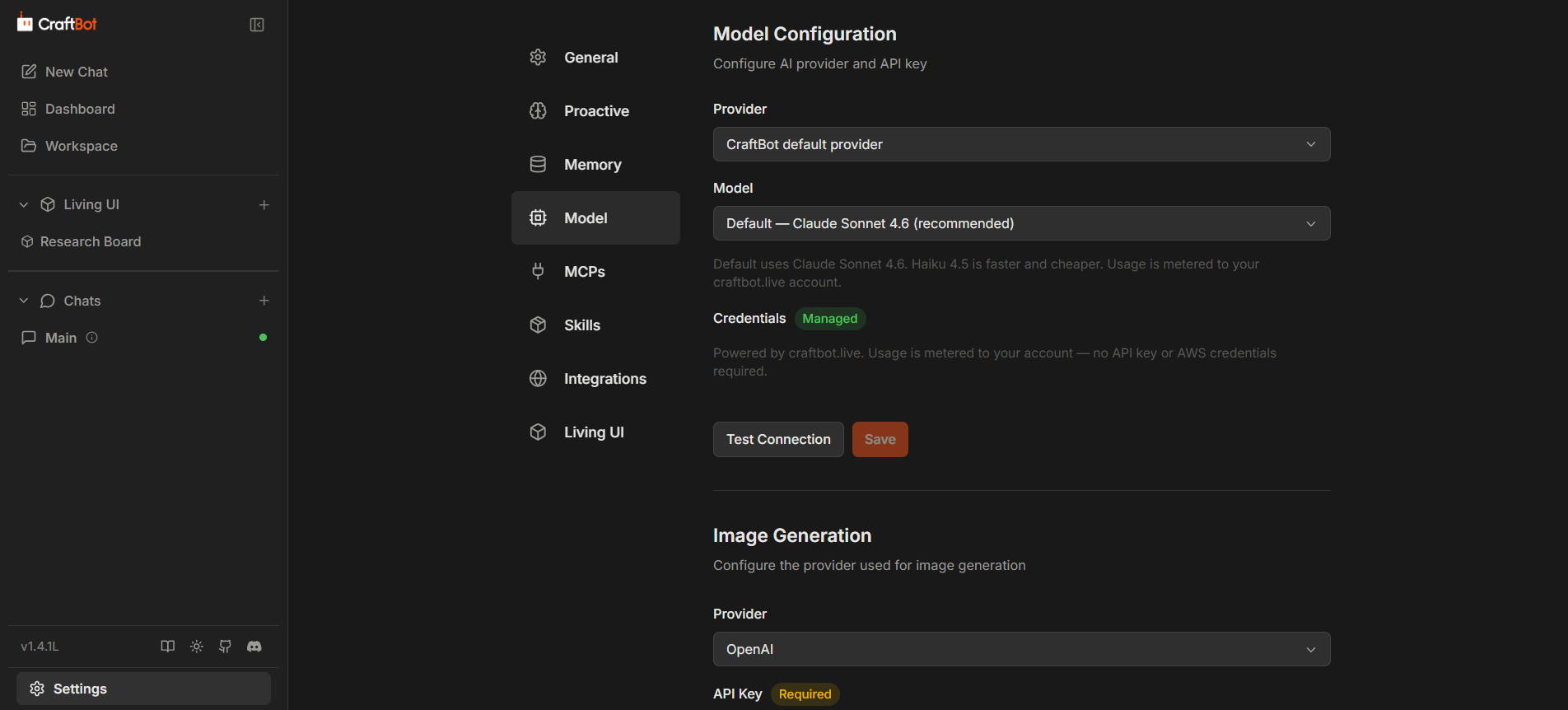
You can continue using the default provider that is already prepared, or you can switch to another model by setting the API key for that provider. The way to issue an API key is usually explained on each LLM provider’s developer site. For example, OpenAI provides this through pages such as https://developers.openai.com/. Other providers generally offer a similar flow through their own developer portals.
The set of supported providers may change over time, but examples include OpenAI, Anthropic, Google Gemini, BytePlus, MiniMax, DeepSeek, Moonshot, Grok (xAI), Z.ai (GLM), Sakana (Fugu), OpenRouter, Local (Ollama), and AWS Bedrock.
Image Generation and Video Generation may have their own provider limitations. Only providers that support those generation APIs can be selected there. This is separate from the normal chat model setting, and it depends not only on the provider’s capabilities but also on whether CraftBot supports that connection.
Proactive Mode
In Settings > Proactive Mode, you can configure CraftBot to do work at planned times even without a fresh instruction from a person each time.
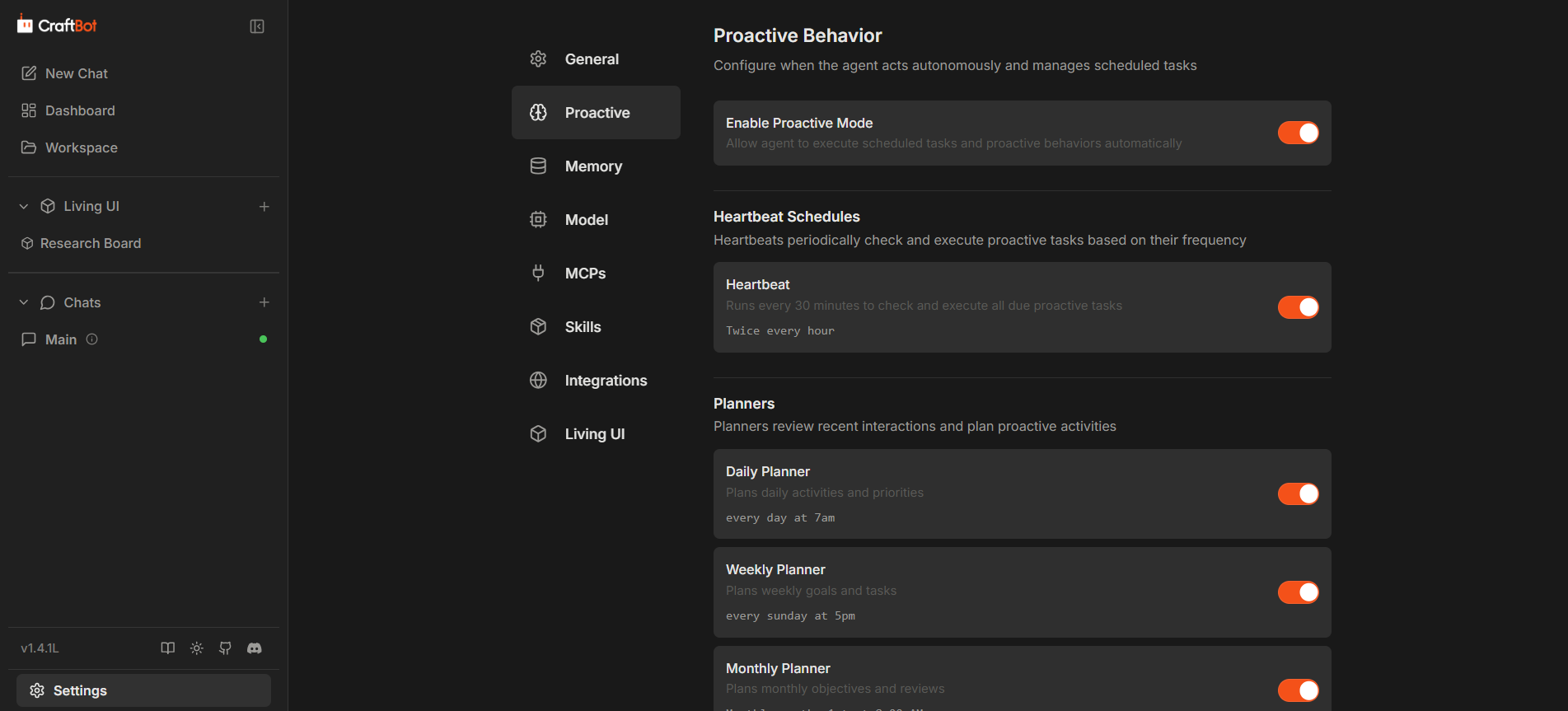
If you enable Proactive Mode, the agent can run scheduled tasks autonomously. For example, it may check something at a specified time, run recurring processing, or execute predefined tasks on a schedule.
Heartbeat Schedules are the regular check timings the agent uses to see whether there is a proactive task that should now run. Rather than imagining constant real-time monitoring, it is better to think of this as the agent checking at intervals and executing tasks whose time has arrived. Planners are the mechanisms that review recent interactions and ongoing progress to decide what should be prioritized next or whether recurring tasks should be revised. They support organization and prioritization across different time horizons such as daily, weekly, or monthly review.
Proactive Tasks are the actual jobs you want the agent to perform automatically. For example, this might include checking specific information every morning, compiling a weekly report, or regularly finding items that still need a reply. Reset Proactive Tasks removes all registered proactive tasks and returns this area to its initial state. Because this cannot be undone, it is effectively a full reset of your automation rules.
⚙️ Advanced
What is MCP?
MCP, or Model Context Protocol, is an open standard for connecting AI agents like CraftBot to external tools, data, and services. When you connect an MCP server, CraftBot can use the tools and data that server provides.
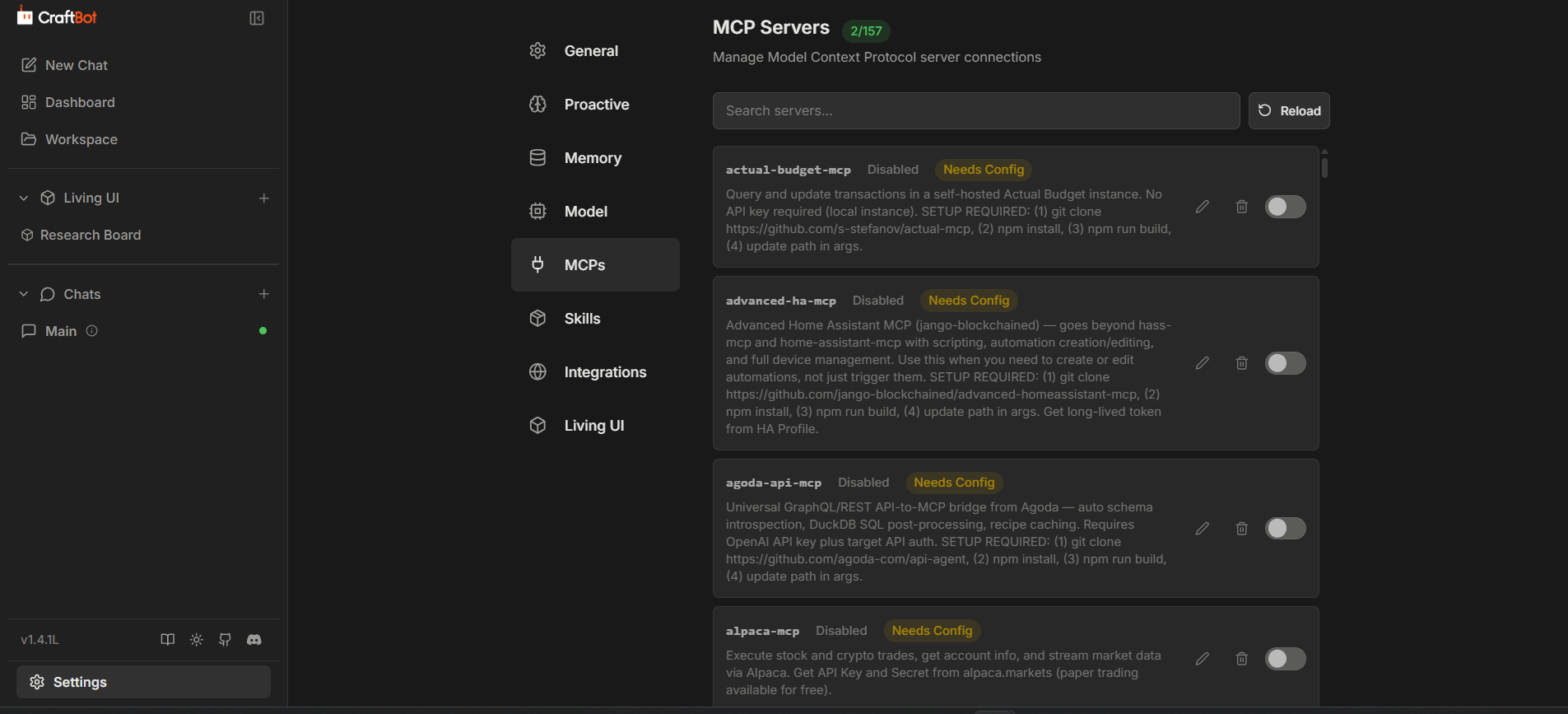
For example, if a service exposes tools such as search_documents, get_customer, or create_ticket through an MCP server, CraftBot can call those tools in response to a user’s request. This makes MCP an important bridge between CraftBot and systems that live outside the default product experience.
Add an MCP
Several commonly used MCPs may already be prepared in advance. If you enable one from Settings > MCP, it generally becomes available for use.
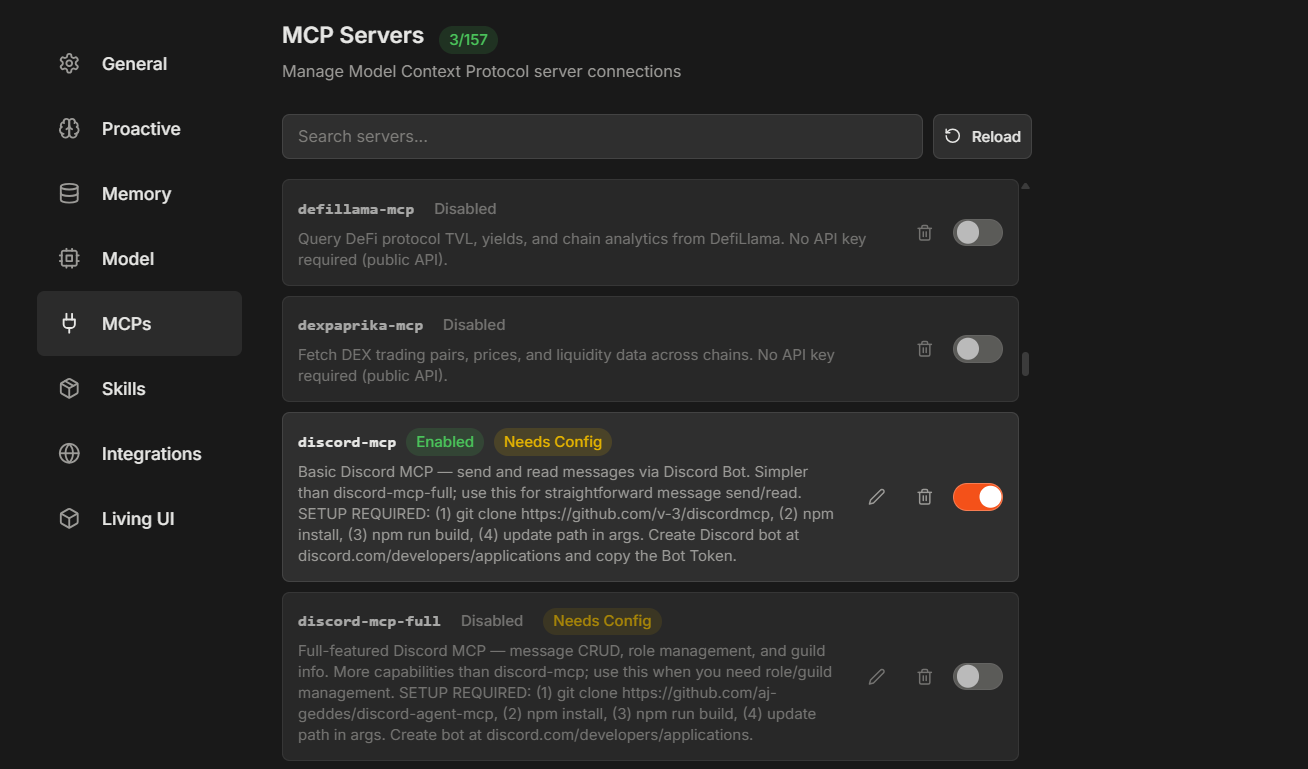
This makes it easier to start with established MCP options before trying more custom setups.
Configure MCP
When an MCP shows “needs config,” it usually means the MCP itself is already registered but the settings required to use it are still incomplete. In many cases, what is missing is an API key, token, connection URL, or startup command.
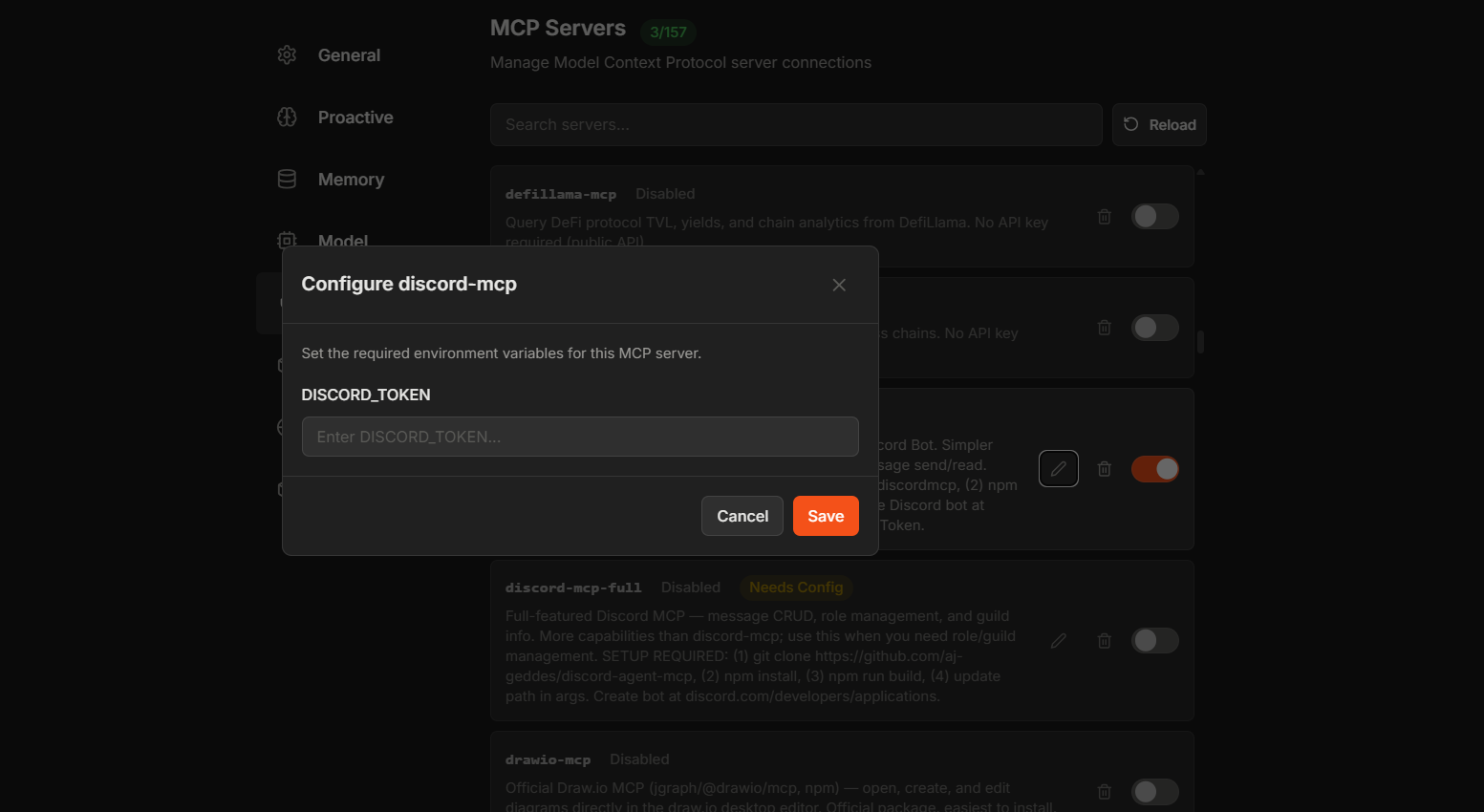
These settings are managed in the MCP entries inside app/config/mcp_config.json, and once saved, they are typically reloaded automatically. It helps to think of configuration-heavy MCPs in four common patterns.
API key type. This type uses an API key issued by an external service. It is often relatively simple and may only require placing a credential such as
API_KEYin the environment settings. The main point is lightweight authentication for access to the external service.OAuth or token type. This type uses things like access tokens,
client_id, orclient_secretfor authentication. Compared with the API key type, the setup is usually a little more involved. Depending on the service, you may need to register an app in advance or decide which permissions to grant.Local startup type. This type runs an MCP server in your local environment rather than connecting to a cloud service directly. In some cases, it does not need an API key, but it does require the command and arguments to be set correctly. For example, it may be started through
npx,python, oruvx. Here, the key issue is not only authentication but also whether the execution environment is prepared correctly.Remote connection type. This type connects to an MCP server or external endpoint that is already running somewhere else. Instead of starting a local server, you provide a destination URL or host information, and sometimes a token as well. In this case, the accuracy of the connection target matters just as much as the credentials.
Build Your Own Skill
At the bottom of Settings > Skills, you can add Skills or create your own.
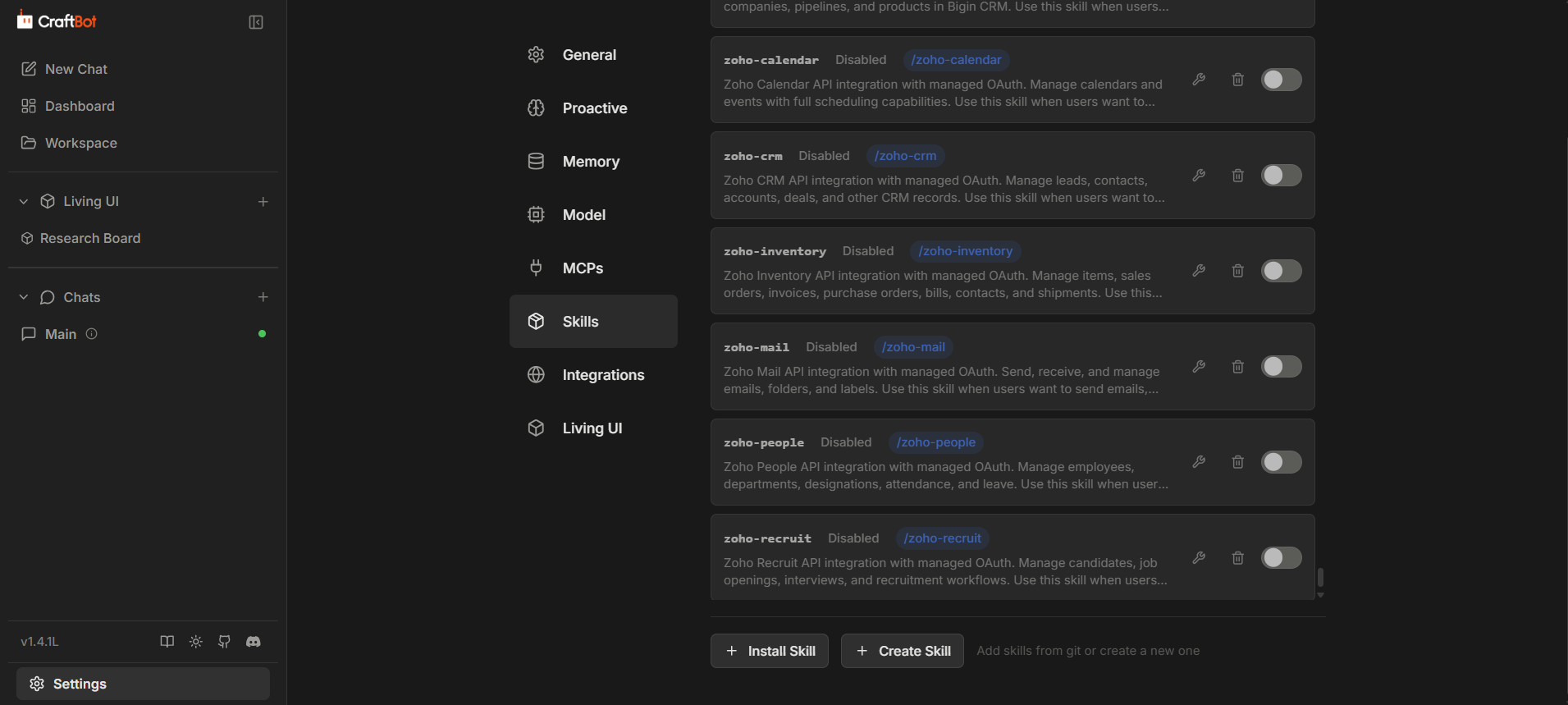
Install Skills lets you bring in Skills that are published externally. Create Skills lets you build your own internal Skill for your team. By teaching CraftBot how your team wants to handle a certain kind of work, you make it easier to reuse a standard flow such as, “For this kind of task, follow this order, check these points, and produce this style of output.” When creating a Skill, you can press the plus button, choose a Skill name, and then describe the contents based on the default guidance shown there.
🎨 Personalization
In General, you can change the basic appearance and display settings for the agent.
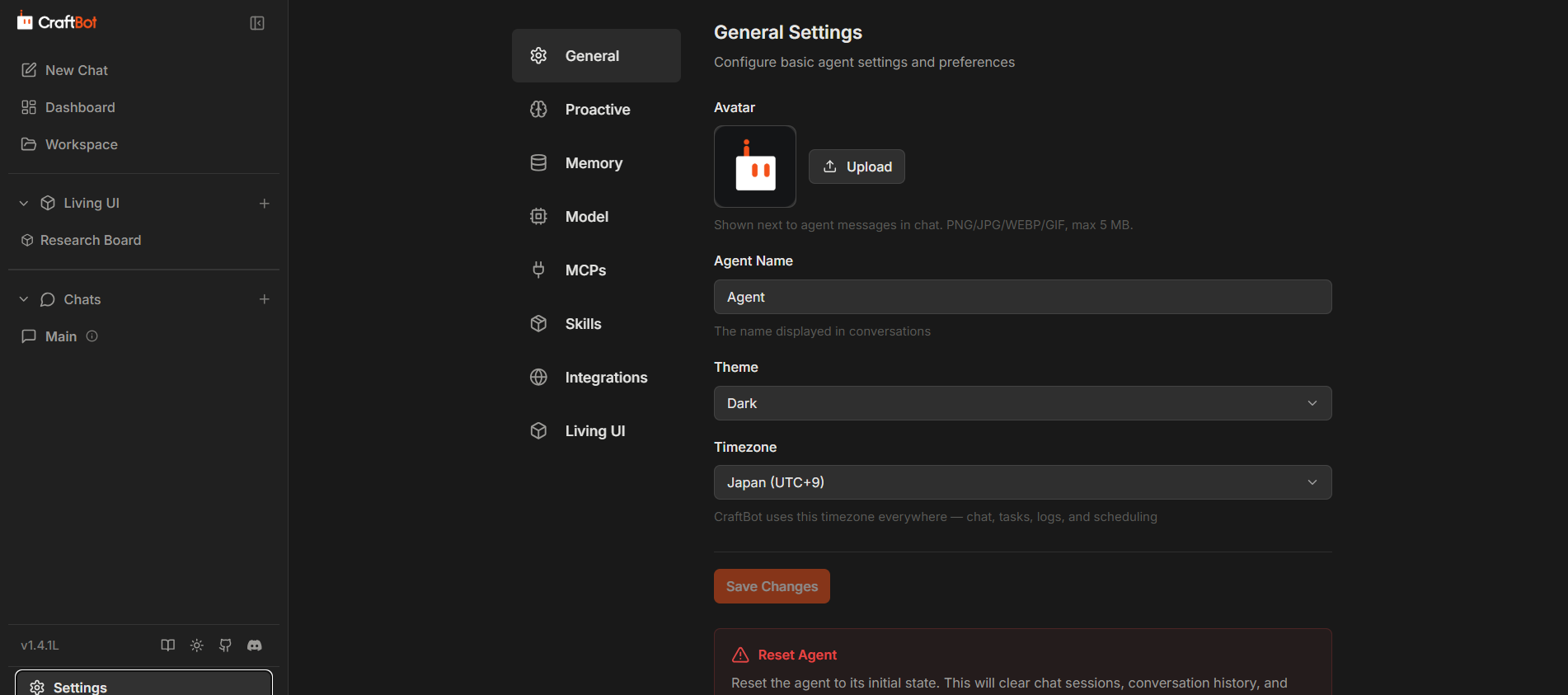
This includes things like the avatar image, agent name, theme, and display language, so you can make the experience feel more natural for yourself or your team. Further down, you may also find configuration files such as the following.
USER.md This is the file for user information. It defines who the agent should adapt to. For example, it may contain the user’s name, language, tone, job, preferences, working style, what requires approval, and long-term goals. In short, it is the foundation for deciding how the agent should optimize its interaction for that user.
SOUL.md This is the file that defines the agent’s personality and speaking style. It controls things like whether the agent sounds brighter or more restrained, how concise it should be, how friendly it should feel, and how direct it should be. In other words, it shapes not just what the agent says, but the atmosphere in which it says it.
AGENT.md This is the operational manual for the agent itself. It contains the practical rules for how work should be done, where files should be stored, when confirmation is required, what procedure should be followed for research, creation, and verification, and what safety rules govern the agent’s behavior. In short, it is the agent’s working handbook and behavior policy.
🌎 Join our community
Thank you for reading this far.
We care deeply about feedback from the people who actually use CraftBot. If you find a bug, want a new feature, want to follow the latest updates, have questions about how to use it, or want help with adoption, please feel free to reach out.
You can send bug reports and feature requests through GitHub at https://github.com/CraftOS-dev/CraftBot. If you want to ask questions, get advice, check the latest information, or connect with other users, it is also worth checking the current community guidance. Public access routes may change over time, so it is best to refer to the latest official information.
Even if you are wondering, “Is it okay to ask something like this?”, that is still completely fine. We want to keep improving CraftBot by listening to the people who actually use it and by making it easier, more useful, and more enjoyable over time.